OneDrive has a built-in file request feature that lets you collect files from anyone — even people without a Microsoft account. You create a request, share the link, and uploaded files land in a folder you control. The uploader never sees the rest of your OneDrive.
It works for simple, one-off collection. But if you need branded upload pages, form fields, automated reminders, or deadline tracking, you'll hit the limits fast. This guide covers how OneDrive file requests work, what they can't do, and what to use when you outgrow them.
Before you start: what Request files needs
The Request files button only appears when all of these are true:
- You're signed in with a work or school account. OneDrive for home doesn't have the feature, even on paid Microsoft 365 Personal and Family plans.
- Your admin allows Anyone links. Microsoft's documentation says: "Disabling Anyone links also disables Request files on SharePoint and OneDrive."
- The folder's Anyone link lets people upload (View, edit, and upload, or View and upload).
- The "Allow only specific security groups" sharing setting is off.
- Your admin hasn't turned Request files off (the OneDrive setting is
OneDriveRequestFilesLinkEnabled). - Your organization isn't on Office 365 operated by 21Vianet or Office 365 Germany.
Admins can turn Anyone links off. If yours has, the button is gone from every folder and there's no setting you can change on your side. Your options are an exception from IT, or an upload page that saves files into OneDrive or SharePoint with no Anyone links and no guest accounts. Our guide to Request files in SharePoint covers the same rules for team sites.
What Is a OneDrive File Request?
A OneDrive file request is a one-way upload link. You pick a folder in your OneDrive for Business account, generate a link, and send it to the people you need files from. They click the link, upload their files, and those files appear in your chosen folder.
Three things make this useful:
- Recipients don't need a OneDrive or Microsoft account. Anyone with the link can upload files, regardless of what tools they use.
- Uploaders can't see other files. The person uploading sees only the upload page — not the contents of the destination folder or anything else in your OneDrive.
- Files are labeled with the uploader's name. OneDrive prepends the uploader's name to each filename, so you can tell who sent what at a glance.
The feature is only available on OneDrive for Business (work and school accounts). Personal OneDrive, Office 365 operated by 21Vianet, and Office 365 Germany don't include it. Google Drive has no built-in equivalent at all; our guide to requesting files in Google Drive covers the workarounds.
How to Create a OneDrive File Request
Setting up a file request takes about two minutes.
Step 1: Navigate to OneDrive for Business
Sign in to your Microsoft 365 account and open OneDrive at onedrive.com or through the app launcher. Make sure you're signed in with your work or school account.
Step 2: Select or create a folder
Choose an existing folder or create a new one for incoming files. Use a descriptive name like "Client Tax Documents" or "Q1 Project Deliverables" — this folder name will be visible to recipients.
Create a dedicated folder for each file request. If you reuse the same folder for multiple requests, all uploads get mixed together.
Step 3: Click "Request files"
With your folder selected, click "Request files" in the toolbar. On some accounts, you may need to click the three-dot menu (...) on the folder and select "Request files" from the dropdown.
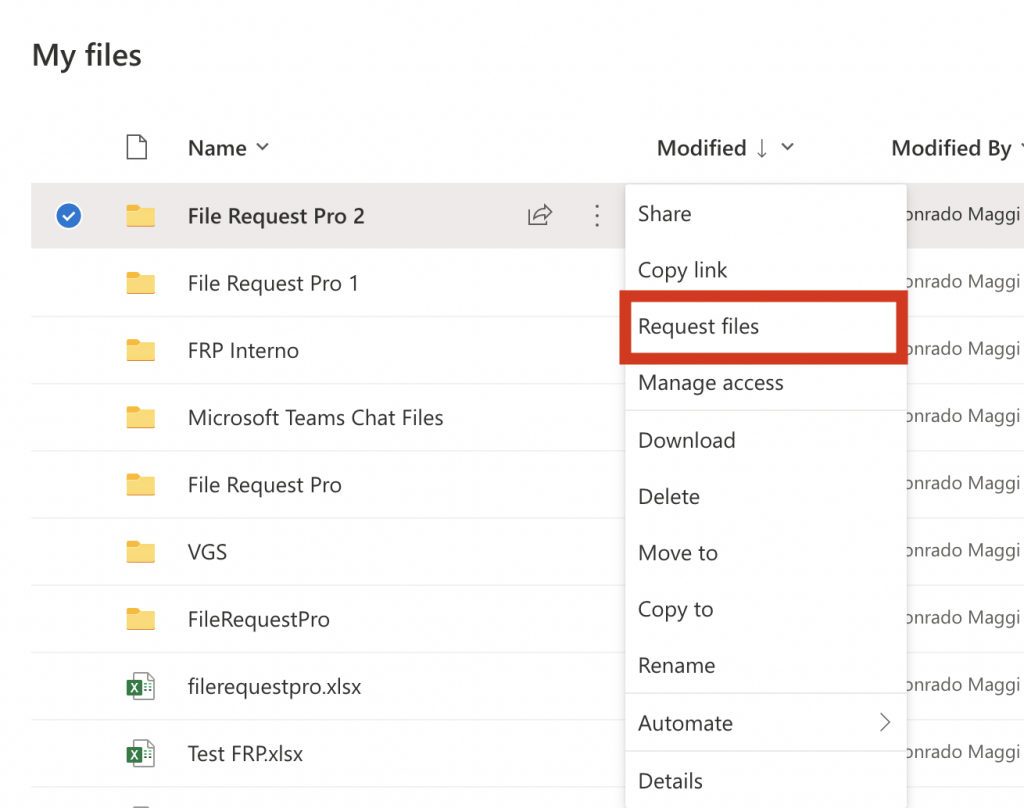
If you don't see the option, check with your IT administrator — they need to enable it at the organization level.
Step 4: Enter a description
Write a clear, specific description of what you need — this is what recipients see when they open the upload link. Instead of "Please upload your files," try "Please upload your signed W-9 form as a PDF." The more specific your description, the fewer follow-up emails you send.
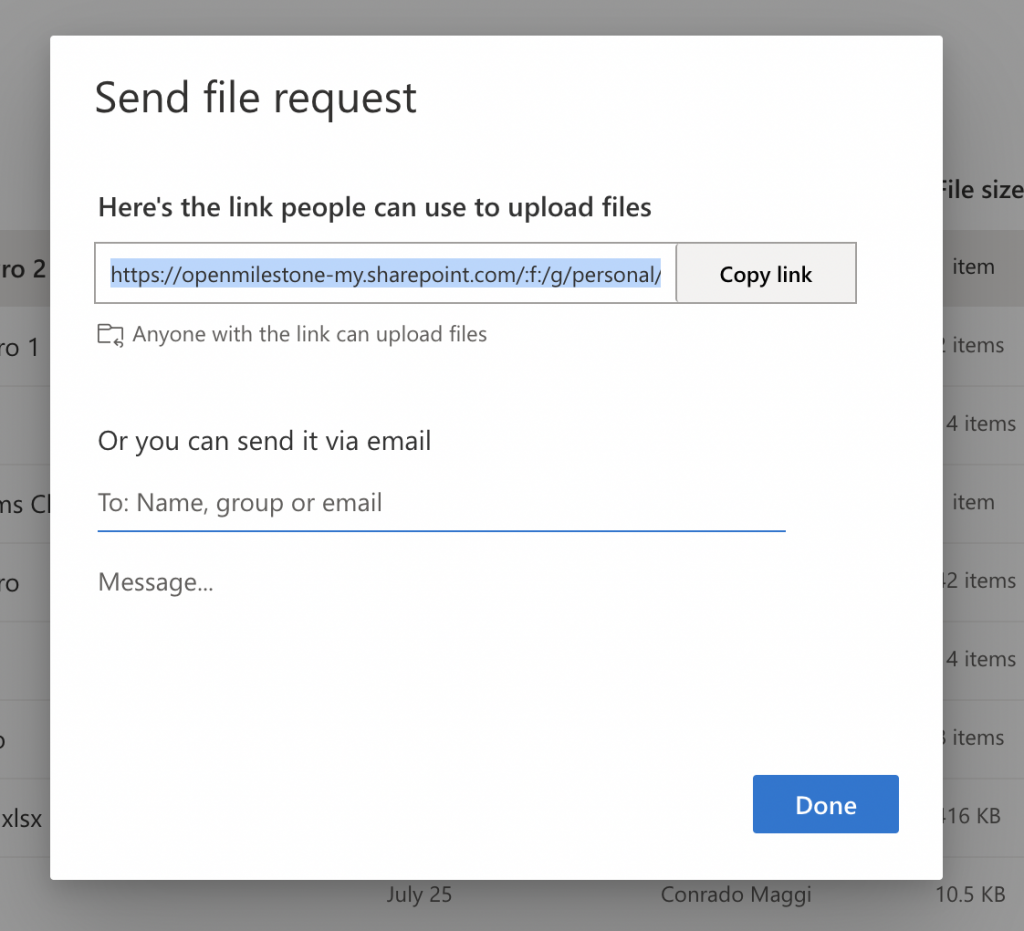
Step 5: Share via email or copy link
You have two options:
- Send via email: Enter recipients' email addresses directly. Microsoft sends them an email with the upload link.
- Copy link: Copy the URL and share it through any channel — email, Slack, Teams, or a client portal.
Copying the link gives you more control. You can paste it into a personalized email or add it to an onboarding checklist. Anyone with the URL can upload files to your folder, so share it intentionally.
Step 6: Track uploads
Check the destination folder to see incoming files. Each file will have the uploader's name at the beginning (e.g., "John Smith - Contract.pdf").
OneDrive emails the request owner after someone uploads files. That message confirms an upload arrived, but it does not provide a recipient checklist or distinguish required documents from optional ones. Keep a separate tracker if a request covers several people or asks for more than one type of document.
OneDrive File Request for External Users
When an external user clicks your file request link, they see a Microsoft-branded upload page. They don't need to create an account or sign in — they enter their first and last name and upload their files.
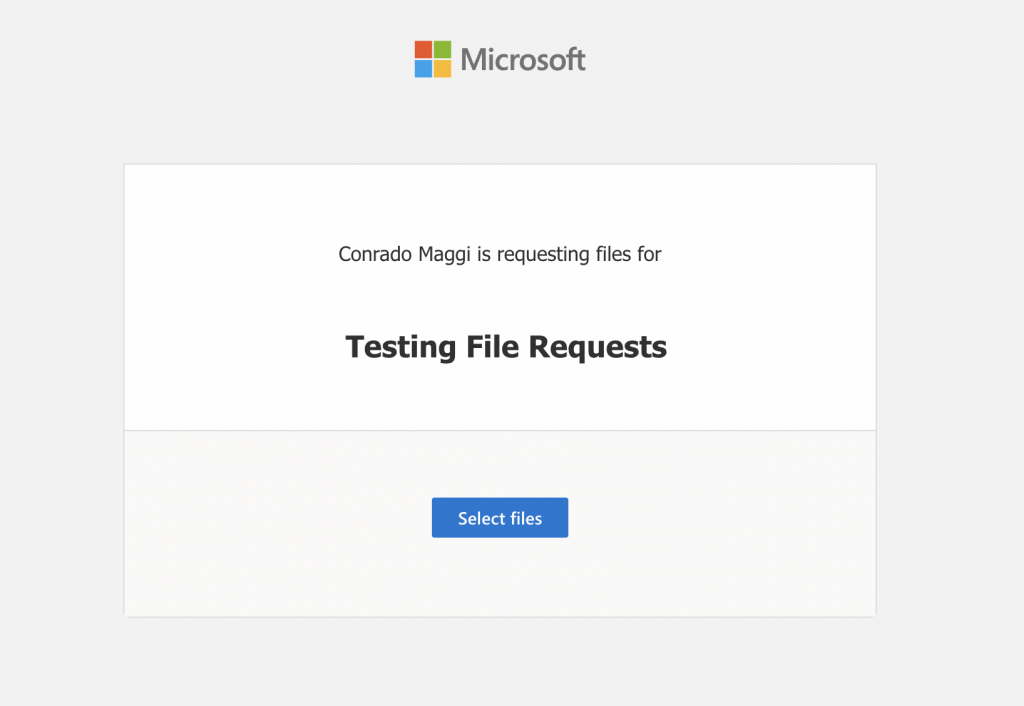
The name they enter gets prepended to the filename automatically — so if Jane Smith uploads "Invoice.pdf," it appears as "Jane Smith - Invoice.pdf" in your folder.
What to know about external access:
- No email address collected. The uploader enters their name but not their email. If you need to follow up about a missing file or corrupt upload, you'll have to track down their contact details separately.
- Uploaders can't see the folder contents. External users see only the upload interface — they can't browse the folder or view other people's uploads.
- Your IT admin controls external sharing. If your organization has disabled external sharing, external users won't be able to use the link.
- No identity verification. Anyone can enter any name. There's no email verification or authentication, so you can't confirm the uploader is who they claim to be.
For collecting files from people you already work with, the zero-account approach removes the biggest friction point in file collection. Think W-9s and insurance certificates from vendors and contractors, or bank statements from bookkeeping clients.
OneDrive File Request Limitations
OneDrive file requests solve the basic problem: collecting files without exposing your account. But the feature hasn't changed much since launch, and the gaps show up fast once you move beyond one-off requests.
No custom branding
The upload page shows the OneDrive logo, Microsoft colors, and standard UI. You can't add your company logo, change colors, or use a custom domain.
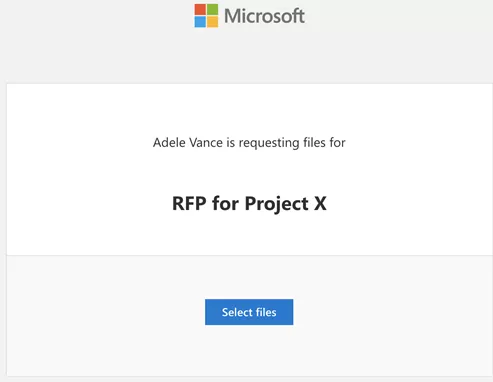
For internal use, this is fine. For client-facing work, such as an accounting firm collecting tax documents or a property manager collecting tenant applications, a generic Microsoft page undercuts the professionalism you're trying to project.
No form fields
A file request collects files and a name. That's it. You can't add fields for project reference numbers, document categories, checkboxes, or notes alongside the upload. Microsoft Forms supports form fields, but sharing Microsoft Forms with external users introduces its own restrictions — particularly around file uploads, which require sign-in. So any context about the files has to come through a separate email or message — which means more back-and-forth before you can open, review, or process what you received.
No automated reminders
When someone hasn't uploaded by your deadline, there's no way to send an automated follow-up. No reminder emails, no status dashboard showing who has submitted and who hasn't. You chase every person individually — manageable for five people, a drain on your week when you're waiting on fifty.
No built-in deadline workflow
A OneDrive request owner cannot set a due date for each recipient or schedule reminder emails. A Microsoft 365 administrator can make the request link expire, but expiry controls access rather than a client's deadline. Include the due date in your message, then track late responses somewhere else.
Not available on OneDrive Personal
File requests require OneDrive for Business (Microsoft 365 work and school accounts). Personal OneDrive plans — even paid ones — don't include it. This trips people up because the interface looks nearly identical across account types.
SharePoint also supports file requests when enabled
SharePoint in Microsoft 365 has its own file request feature if administrators allow Anyone links and turn on the Request Files settings. Uploads can go straight into a SharePoint folder. If your site cannot use it, collect through OneDrive and move the files manually or with Power Automate.
No email collection from uploaders
OneDrive prepends the uploader's name to each file but doesn't collect their email address. If you need to follow up — a corrupt file, a missing page, a receipt confirmation — you have to match the name to your own contact records manually.
OneDrive vs. SharePoint file requests
OneDrive and SharePoint both support upload-only request links in eligible Microsoft 365 environments. Where the files live is the practical difference: OneDrive puts them in one person's storage, while SharePoint puts them in a team document library. Administrators control whether either feature is available through sharing settings.
| Feature | OneDrive file request | SharePoint file request |
|---|---|---|
| Destination | A folder in one user's OneDrive for Business | A folder in a SharePoint document library |
| Uploader access | Upload only; folder contents stay hidden | Upload only; folder contents stay hidden |
| Account required for uploader | No | No |
| Team ownership | The files start in an individual's storage | The files go directly to a team-managed site |
| Best fit | Personal or ad hoc collection | Team workflows and shared document libraries |
When to use OneDrive
OneDrive works well for a temporary or ad hoc request owned by one person, especially when the files do not need to enter a team library right away. It takes only a few steps to set up, and recipients can upload without opening the folder or signing in.
When to use SharePoint
SharePoint is the better home when a team should own the files as soon as they arrive. Its document libraries support metadata, views, retention, shared ownership, and later workflows. Your Microsoft 365 administrator still needs to enable Request files and allow it on the relevant site.
When to use a separate collection tool
A separate collection tool is worth considering when an upload-only link creates too much work afterward. It can collect answers with files, track several documents for each client, send reminders, apply your branding, and route submissions to different OneDrive or SharePoint folders based on the request or respondent.
OneDrive upload link vs. a shared folder link
A OneDrive upload link uses File Request, which lets people add files to a chosen folder without opening it or seeing what is already there. A standard sharing link grants some access to the folder, so it is a poor fit when you only need to receive files.
| Link type | What the recipient can do | Best use |
|---|---|---|
| OneDrive File Request | Upload files without viewing the destination folder | Collect documents from clients or external users |
| Shared folder link | View, edit, or download files, depending on permission settings | Collaborate on files already in the folder |
| Direct file link | Open or download one existing file | Send a finished document |
How to create a OneDrive upload-only link
File Request is OneDrive for Business's upload-only option. Create or select the destination folder, choose Request files, explain what you need, and copy the link. Before sending it to anyone outside your organization, open it in a private browser window and check exactly what they can see.
- Open OneDrive for Business and select the destination folder.
- Choose Request files from the folder actions.
- Enter a short description that tells the recipient what to upload.
- Copy the generated link and send it to the recipient.
- Open the link in a private window to confirm that it accepts uploads without exposing the folder.
If your workflow stores final files in a team site, compare this approach with the methods in our SharePoint file request guide.
OneDrive File Request Alternatives
OneDrive file requests handle basic, one-off collection. When you need branded upload pages, custom form fields, automated reminders, or SharePoint integration, you need a dedicated tool.
File Request Pro fills the gaps in OneDrive's built-in feature. People upload through your File Request Pro page, and each file is saved to the OneDrive or SharePoint folder you pick, with no Anyone links and no guest accounts. Files pass through File Request Pro's storage on the way; on Business and Enterprise, Pipeline mode deletes that copy once the file is in your drive.
What File Request Pro adds:
- Branded upload pages. Your logo, plus your colors on Lite and up, so clients see your brand, not Microsoft's. A custom domain comes with the Business and Enterprise plans.
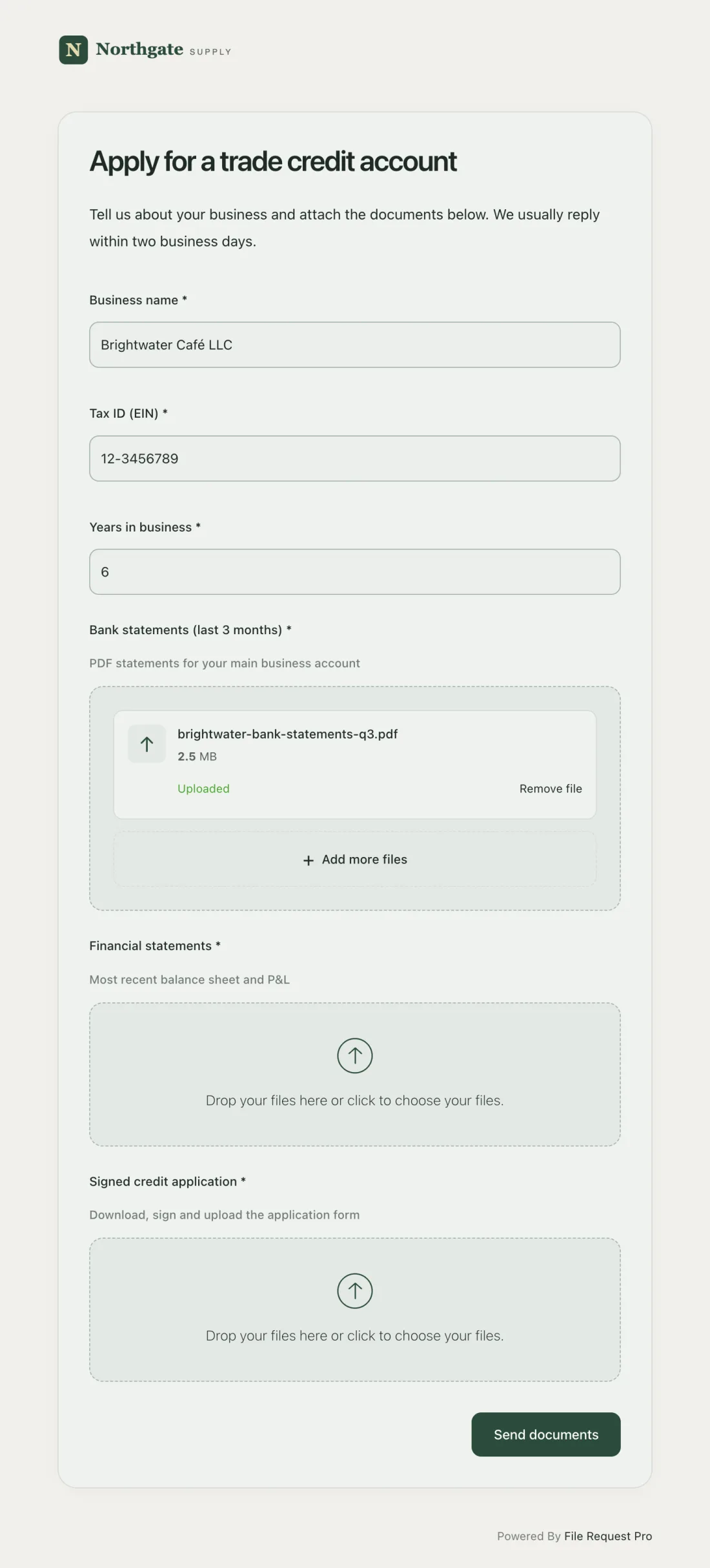
- Custom form fields. Add text fields, dropdowns, checkboxes, and date pickers alongside file uploads. Collect project names, document types, and reference numbers in the same submission.
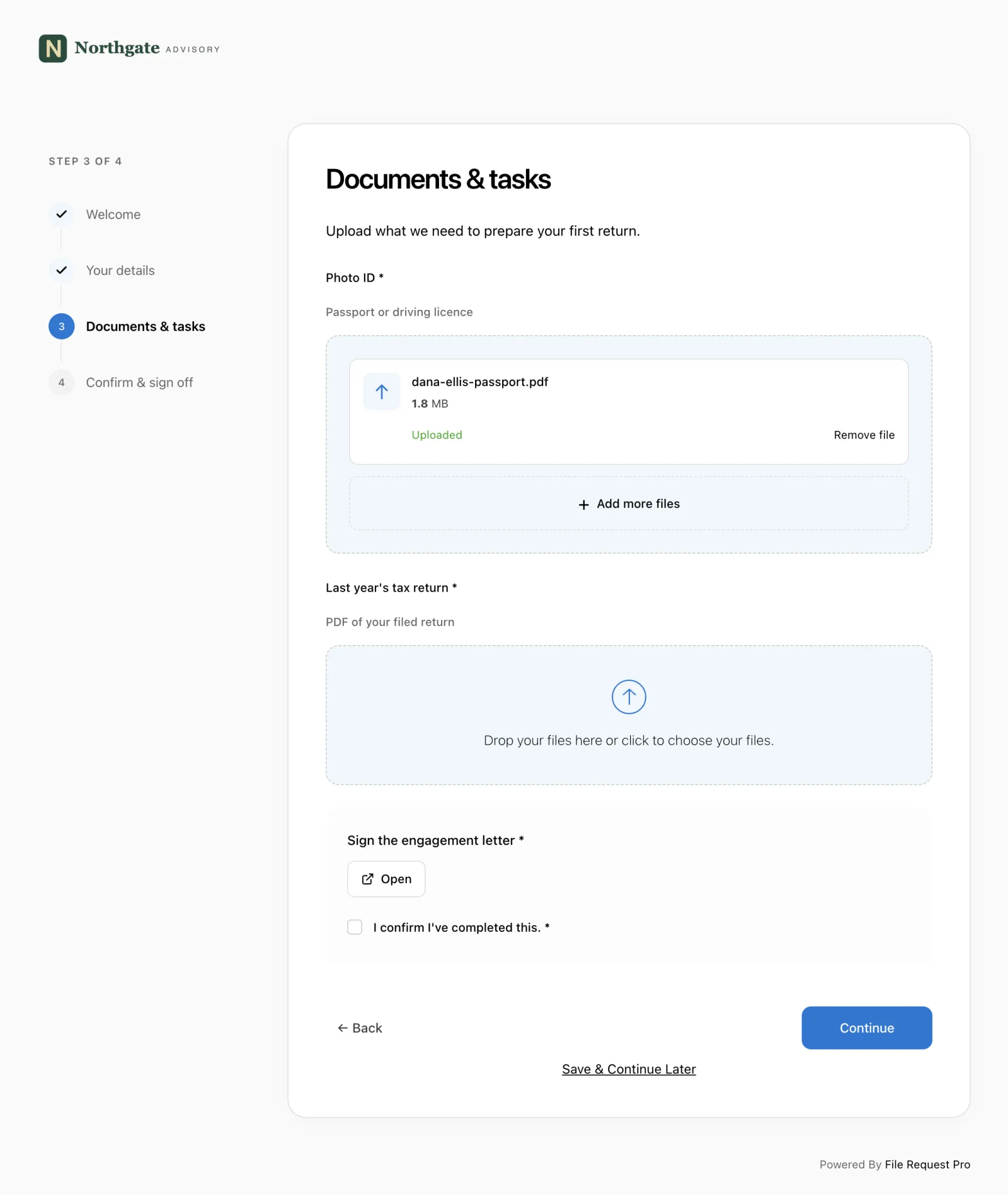
- Automated reminders. Email reminders go out automatically to anyone who hasn't submitted — no more chasing people one by one. You control the timing, frequency, and message.
- Deadline management. Give each request a due date. Reminders go out before and after it, and anything past the date shows as overdue.
- SharePoint integration (Pro plan and up). Uploads land in the SharePoint document library you pick, where your team can open them right away.
- Automatic file organization. Files sort into subfolders by submitter name, email, project, or date — so instead of one messy folder with 200 files, you get a clean structure like
Client Uploads / Acme Corp / Signed Contract.pdf.
File Request Pro starts at $19/month, with OneDrive on every plan. SharePoint starts with the Pro plan at $79/month, and you can try it free first. If OneDrive file requests cover what you need today, use them — they're free and built in. When you're spending more time chasing uploads than reviewing them, a purpose-built tool takes that work off your plate.
OneDrive File Request FAQ
How do I create a file request in OneDrive?
Open OneDrive for Business, navigate to the folder where you want to receive files, and click "Request files" in the toolbar. Enter a description of what you need, then share the link via email or copy it to your clipboard. Recipients upload through the link without needing a OneDrive account.
Can external users upload files to OneDrive without a Microsoft account?
Yes. When an external user clicks a file request link, they enter their first and last name and upload their files. No Microsoft account or sign-in required. OneDrive automatically prepends the uploader's name to the filename.
Is the file request feature available on personal OneDrive accounts?
No. File requests need OneDrive for work or school plus the appropriate Microsoft 365 sharing settings. OneDrive for home does not include the feature. Even with an eligible business account, the button can disappear if an administrator disables Request files by restricting the use of Anyone links.
Can I use OneDrive file requests with SharePoint?
Yes. When it is enabled, a native SharePoint file request is more direct. Otherwise, collect the files in OneDrive and move them manually or with Power Automate. Consider a separate collection tool if the job also calls for forms, status tracking, branding, or automatic reminders.
Can I set a deadline on a OneDrive file request?
No. You can't set a due date on a OneDrive file request. The link works until you delete it in Manage access, unless your admin has set request links to expire after a number of days. Put the deadline in the request description or your email.
How do I know when someone uploads a file?
OneDrive emails the request owner each time someone uploads to the request folder. The email confirms the activity, and OneDrive prefixes the submitted filename with the uploader's name. It will not list missing documents or people who have not responded, so track those separately if necessary.
What is the file size limit for OneDrive file requests?
The upload limit is 250 GB per file, the same as standard OneDrive uploads. Your overall storage quota also applies. If your OneDrive is full, uploads through file requests will fail.
Can I customize the OneDrive file request page?
No. The upload page uses Microsoft's standard branding and layout. You can't add your logo, change colors, or use a custom domain. For branded upload pages, you'll need a third-party file collection tool.
Can uploaders see other files in the folder?
No. The file request link shows only the upload interface. Uploaders can't browse the destination folder, view other people's uploads, or access any other files in your OneDrive.
How do I create an upload link for OneDrive?
Use the "Request files" feature. Navigate to a folder in OneDrive for Business, click "Request files", add a description, and click "Copy link." This generates a URL anyone can use to upload files to that folder.
