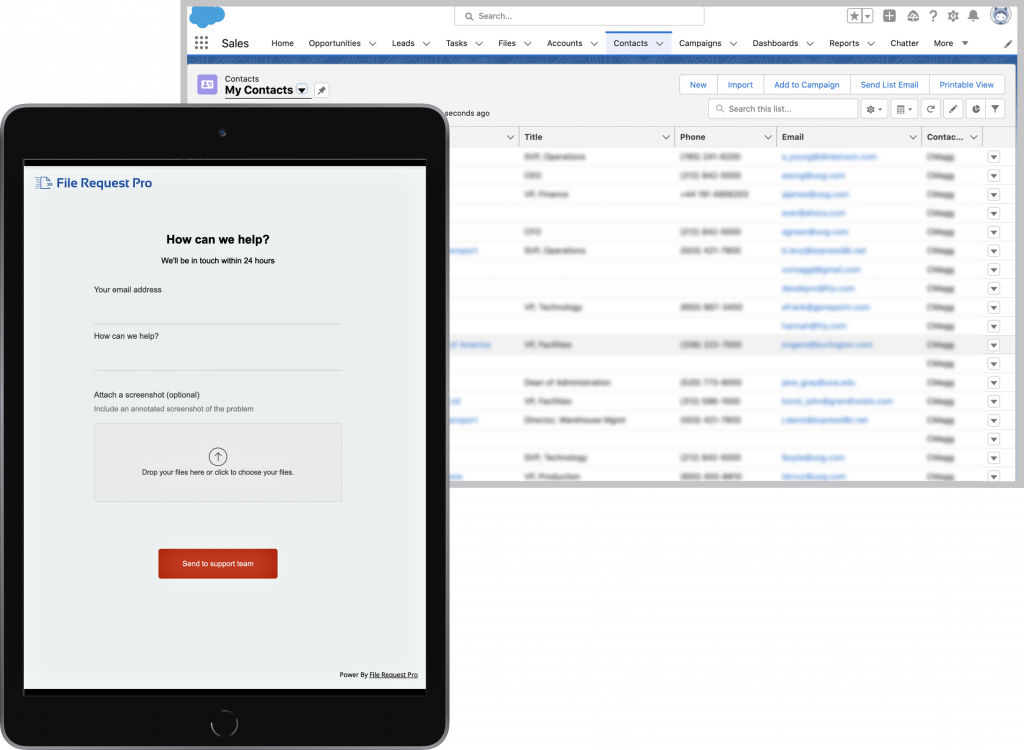
You want your clients to see your firm's name on every screen they use. Search for a white label client portal, though, and you'll find two different products under the same name. One is a full portal that clients log in to. The other is a branded upload page that clients open from a link. Both can carry your logo, but they do different jobs and ask very different things of your clients.
The short answer: choose a portal if clients come back often to download, approve or pay. Choose a branded upload page if you mostly need documents from them.
What is white label software?
White label software is built and run by one company and presented to your clients under your name. The vendor keeps the product working. Your clients only see your brand.
In a client-facing tool, white label usually covers five layers:
- Logo and colors: your logo at the top, your brand colors on buttons and headings.
- Your domain: the address bar shows uploads.yourfirm.com or portal.yourfirm.com, not the vendor's domain.
- Your email sender: invitations and reminders arrive from an address at your domain, such as [email protected].
- No vendor branding: no "Powered by" line, footer bar or vendor logo on pages and emails.
- Custom CSS: your own fonts, spacing and layout tweaks, so the page matches your website.
Many tools include the first layer on every plan. The other four are usually where plans differ. If a page has your logo but sits on the vendor's domain with a "Powered by" footer, it's branded. It only counts as white-label once the vendor's name is gone. Keep that in mind when you compare prices, because "white label" on a pricing page can mean either.
Two shapes: a full portal or a branded upload page
A full white-label client portal
A client portal is a private workspace your clients log in to. Each client gets an account and sees their own area: files you've shared, a message thread, tasks to complete, documents to sign, invoices to pay. Permissions control who sees what.
A white label portal runs that workspace at your domain, under your branding. Some vendors add a mobile app with your name on it. Depending on the industry, the same product is sold as a white label customer portal.
A branded upload page
A branded upload page, sometimes called a file request page, does one job: it gets files and answers from your clients to you. Clients don't log in. They open a link, answer the questions you set, attach their files and submit. Many of these tools then deliver the files to cloud storage you already use, such as Google Drive, OneDrive, Dropbox or SharePoint. Files are often sorted into a folder per client.
You can share one page with everyone, as a link on your website or in your email signature. Or you can send each client a personal request with a deadline and reminders. The client never sees a dashboard, because there isn't one.
White-label client portal vs branded upload page
| Full client portal | Branded upload page | |
|---|---|---|
| Client login | Every client has an account, with a password or an emailed sign-in link | None. Clients open a link |
| What clients see | A dashboard: files, messages, tasks, invoices, history | One page: your instructions, your questions and an upload area |
| Direction | Two-way: you share with them and they share with you | One-way: clients send to you |
| Setup time | Typically days to weeks: folder structure, permissions, client invites, showing clients how to log in | Usually shorter, often a day or less for a simple form: build the form, pick the destination folder, share the link |
| Cost drivers | Per-user or per-client pricing, the tier that unlocks white-label, extras such as a branded mobile app | The plan tier, which sets branding options, number of pages, monthly requests and whether vendor branding can be removed |
| Where files live | Varies by vendor: often the portal's own storage, sometimes synced to yours | Often your own Google Drive, OneDrive, Dropbox or SharePoint |
| Best for | Ongoing projects, deliverables, approvals and billing in one place | Collecting documents: tax paperwork, onboarding files, KYC, project assets |
These are typical patterns. Vendors differ, so confirm the details with the questions further down.
Clients keep coming back to a portal. They open an upload page when you ask them for something, and then they're done.
When a full client portal is worth it
Pick a portal when clients need to come back. Good signs:
- You send clients work to download, review or approve, again and again.
- You want messages, files and invoices in one place instead of spread across email, a file-sharing tool and an invoicing app.
- Clients log in weekly or more, so the password becomes routine instead of a hurdle.
- Clients expect a history: what they sent, what you returned, what's still open.
The cost you don't see on the pricing page is adoption. Every client needs an account, and some will forget the password the week their paperwork is due. You'll answer "how do I log in?" emails, and a few clients will skip the portal and email the files anyway. Budget for that time as well as the subscription.
If you already pay for Microsoft 365, you might wonder whether SharePoint can be your portal. It can share files with outside guests, but it isn't built as a branded customer portal. This guide on building a customer portal with SharePoint walks through what's possible and where it falls short.
When a branded upload page is enough
Pick an upload page when the job is getting documents in. Good signs:
- Most of the traffic runs one way. Clients send you documents, and you deliver your work by email, on a call or in a shared folder.
- Clients send files a few times a year: at tax time, at onboarding, at the start of a project. Nobody remembers a password they use twice a year.
- Some clients won't create accounts, or can't: older clients, a client's assistant, a contact at a lender you've never spoken to.
- Your cloud storage is already where you work, and you want files to land there without an export step.
You don't have to pick one. Some firms use a portal for delivery and billing with active clients, and an upload link for collecting documents, where logins cause the most friction. If you run an accounting practice, our guide to client portals and document collection for accountants shows how the two fit together.
What "fully white-label" requires
Whichever shape you choose, white label only holds up if every screen and email your client sees carries your brand. Check each of these.
Your own domain, through a CNAME record
Your page or portal should run at an address like uploads.yourfirm.com. Typically you add a CNAME record at your DNS provider that points your subdomain to a hostname the vendor gives you. Then you enter the address in the tool's settings. A familiar domain also makes the link easier to trust for clients who've been told to be wary of strange addresses. For the CNAME steps at common DNS providers and how to test the result, see using your own domain for a client upload page.
Email from your domain, through SMTP
Invitations and reminders should come from your address, not a vendor's no-reply. Tools usually handle this in one of two ways. Some let you connect your own SMTP server, such as your Microsoft 365, Google Workspace or other email account. Others send on your behalf once you verify your domain with DNS records.
Ask which one a vendor uses, because SMTP depends on what your email admin allows. The settings for the main providers are in how to send client emails from your own domain.
No "Powered by" anywhere
Look past the main page. Vendor names hide in email footers, the browser tab title, the confirmation screen after a client submits, and the sign-in page of a portal. Removing them is often tied to a higher plan, so check which plan does it before you assume yours does.
Custom CSS
Logo and color settings get you most of the way. Custom CSS lets you match your website's fonts and spacing, or hide elements you don't use. You only need it if brand consistency matters enough to bring in someone who knows CSS.
Questions to ask a vendor before you buy
- Which plan removes your branding from pages and emails?
- Is a custom domain included in that plan, or is it an add-on? One domain per account, or one per page or client?
- Do emails go through my SMTP server or a verified sender? Does that work with Microsoft 365 or Google Workspace?
- Do my clients need an account to send me files?
- Where do uploaded files end up, and can they go to my own cloud storage?
- Is pricing per user, per client or flat? Per-client pricing adds up fast if you serve hundreds of small clients.
How File Request Pro handles white-label upload pages
File Request Pro is the second shape: a branded upload page with no client login. Clients answer your questions and upload their files. The files pass through File Request Pro on the way to your Google Drive, OneDrive or Dropbox, or to SharePoint on Pro and up.
What clients see depends on your plan:
| Plan | Branding on the upload page |
|---|---|
| Starter, $19/month | Your logo and text, default colors, a File Request Pro footer bar |
| Lite, $39/month, and Pro, $79/month | Your logo and your colors, plus a small "Powered by" line |
| Business, $149/month, and Enterprise, from $249/month | No File Request Pro branding, your own domain, emails through your SMTP server, custom CSS |
So full white-label, meaning your domain, your email sender and no File Request Pro branding, takes Business or Enterprise. If your logo and colors are enough, Lite covers it. See how a white-label file upload portal looks for clients, or compare every feature on the pricing page. The free trial runs for 15 days or 25 files, and you don't need a credit card.