Dropbox File Requests let you collect files from anyone (clients, colleagues, event guests) without giving them access to your Dropbox account. You share a link, they upload, and everything lands in a folder you choose, so you're not fishing attachments out of your inbox or managing shared-folder permissions.
This guide covers how to create a file request, size limits by plan, security, deadlines and reminders, and how to close or delete a request when you're done. Every step and limit below matches Dropbox's current documentation as of July 2026.
What Is a Dropbox File Request?
A Dropbox file request is a link that lets other people upload files directly into a folder in your Dropbox account. Uploaders never see the contents of the folder — they can only add files to it. They don't need a Dropbox account, and by default the destination folder stays private to you.
File requests are useful whenever you need to gather documents, photos, or other files from several people and want them organized in one place instead of scattered across your inbox.
How to Create a File Request in Dropbox (Step by Step)
To create a file request:
- Log in to dropbox.com.
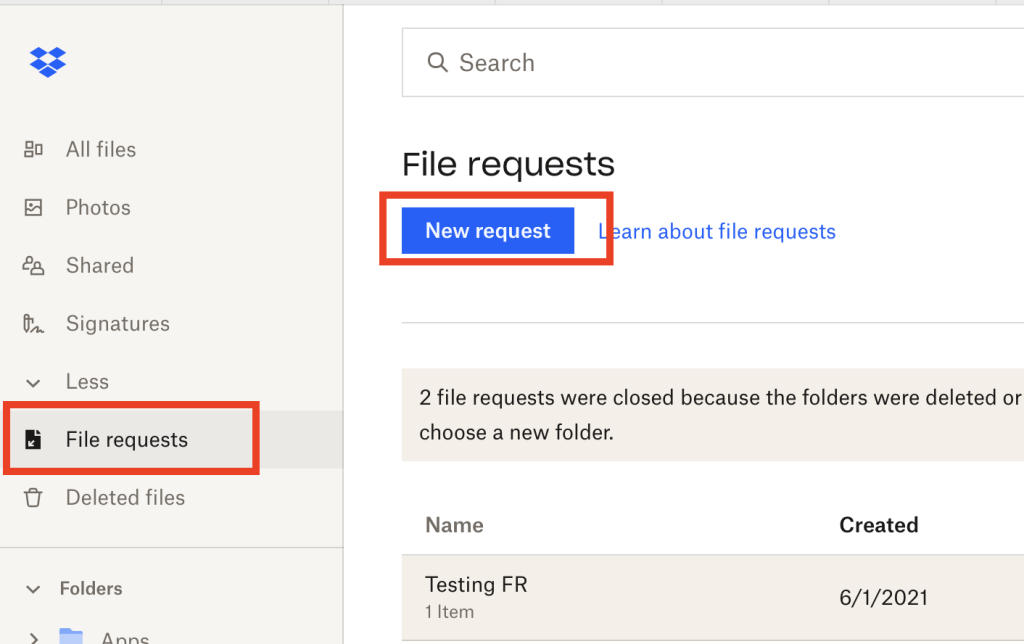
- Click File requests in the left sidebar.
- Click New request.
- Enter a Title that tells people what you're asking for — "Event Photos" or "2026 Tax Documents" works better than "Files".
- Add a Description with any specifics: accepted formats, naming conventions, or what to include.
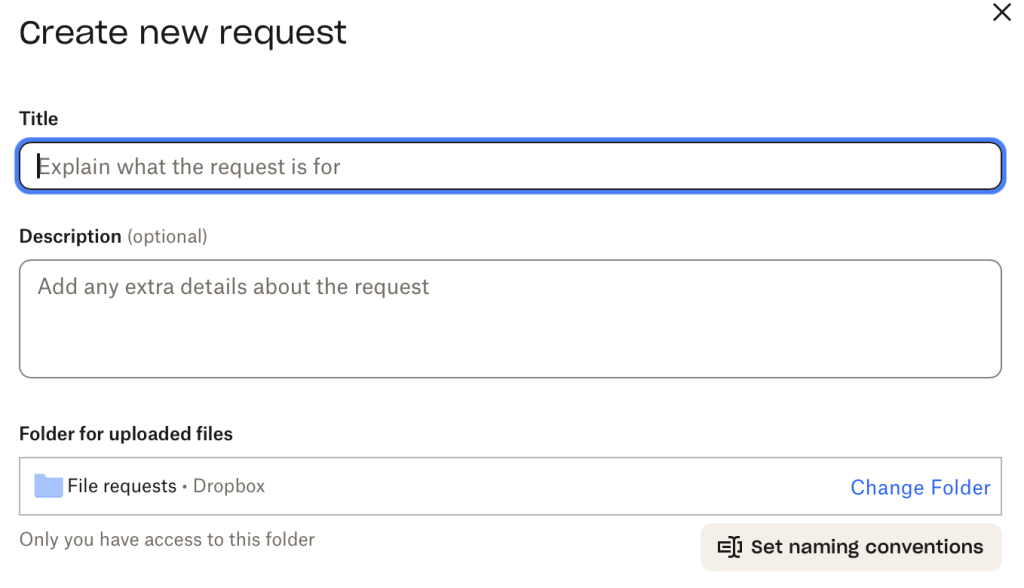
- Choose the folder where uploads should land. Dropbox creates a new folder by default, but you can pick an existing one.
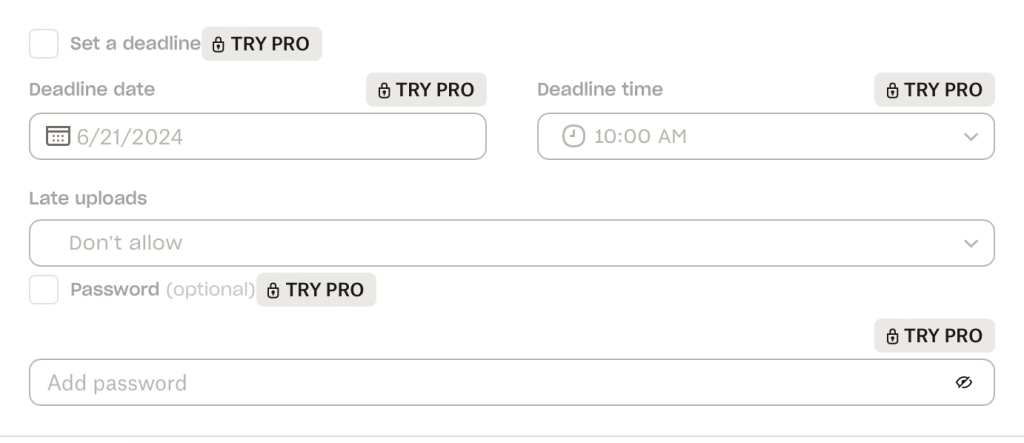
- Optionally set a deadline or add a password — both are available on paid plans only (more on this below).
- Click Create.
- Enter the email addresses of the people you're requesting files from, or copy the link and share it however you like.
That's it. You'll get an email notification each time someone uploads.
What Is the Dropbox File Request Size Limit?
The size limit depends on the account of the person receiving the files:
| Plan | Maximum file size per upload |
|---|---|
| Basic (free), Plus, Family | 2 GB |
| Professional, Essentials, Business, Business Plus, Standard, Advanced, Enterprise | 250 GB |
Two things catch people out:
- Uploads count against your storage quota. If your Dropbox is full, your file request stops accepting uploads — a common reason a request suddenly "doesn't work".
- The limit applies per file, not per request. Someone can upload several large files as long as each one is under the cap and you have space.
Are Dropbox File Requests Secure?
Yes, for most purposes. The security model works like this:
- Uploaders can only add files. They can't see, edit, or download anything in the destination folder — including files other people have uploaded.
- By default the destination folder is private to you. If you point a request at a shared folder, everyone with access to that folder can see the uploads.
- Dropbox encrypts files in transit and at rest.
- On paid plans you can add a password to the request, which you share separately with your uploaders.
For routine file collection this is solid. If you're collecting sensitive client documents under compliance requirements, you may miss having an audit trail or a way to verify who actually uploaded each file. That's covered in the alternatives section below.
Can You Set Deadlines and Send Reminders?
Partly, and only on paid plans.
On paid plans (Professional, Essentials, and the Business and Enterprise tiers) you can set a deadline on a file request, with an option to allow late uploads. Around the deadline, Dropbox sends one reminder email on your behalf.
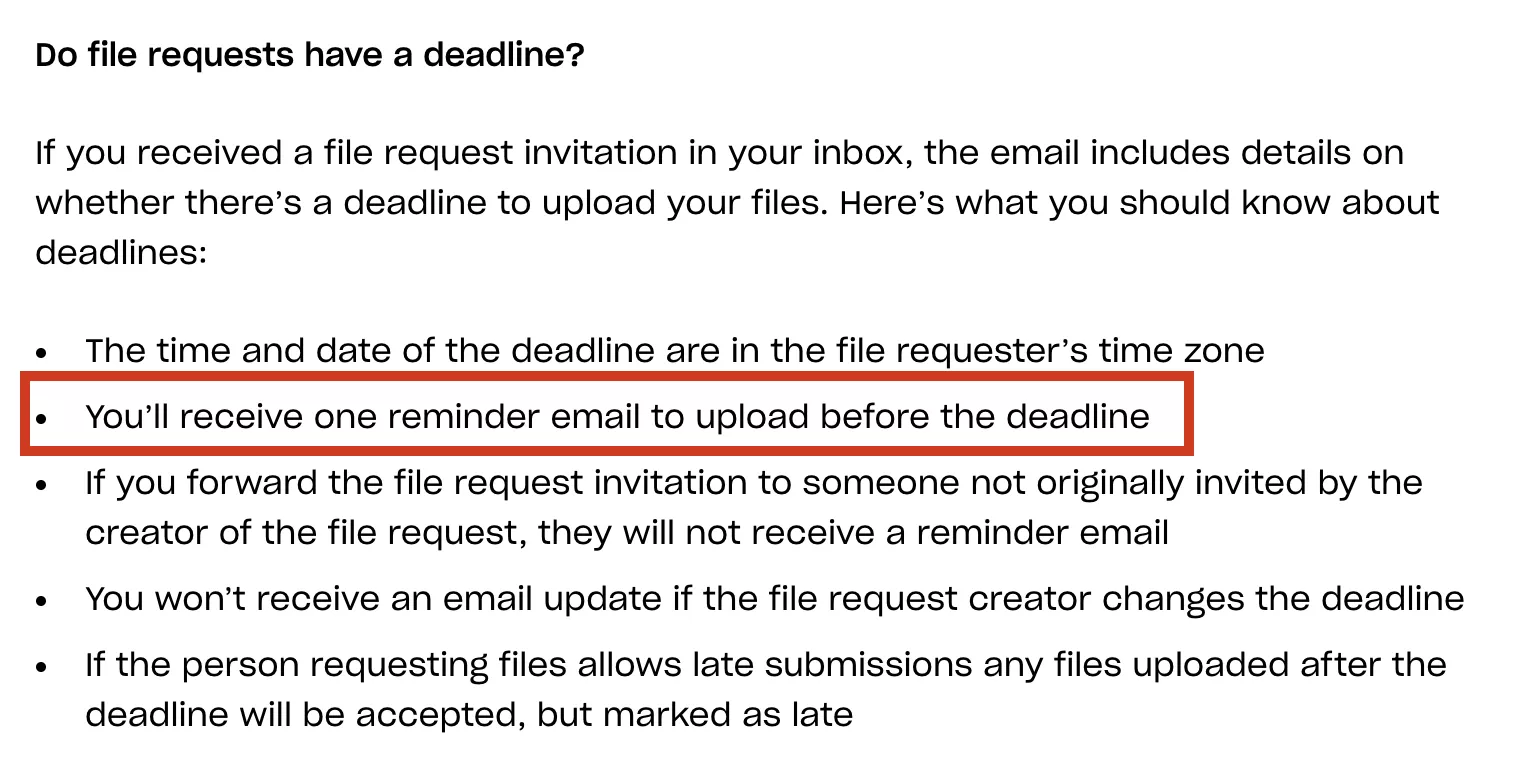
What you can't do: customize the reminder, send more than one, or set up a follow-up sequence for people who haven't uploaded. If chasing people for files is a regular part of your work, you'll be doing it manually from your own inbox.
Can You Collect Email Addresses or Other Information?
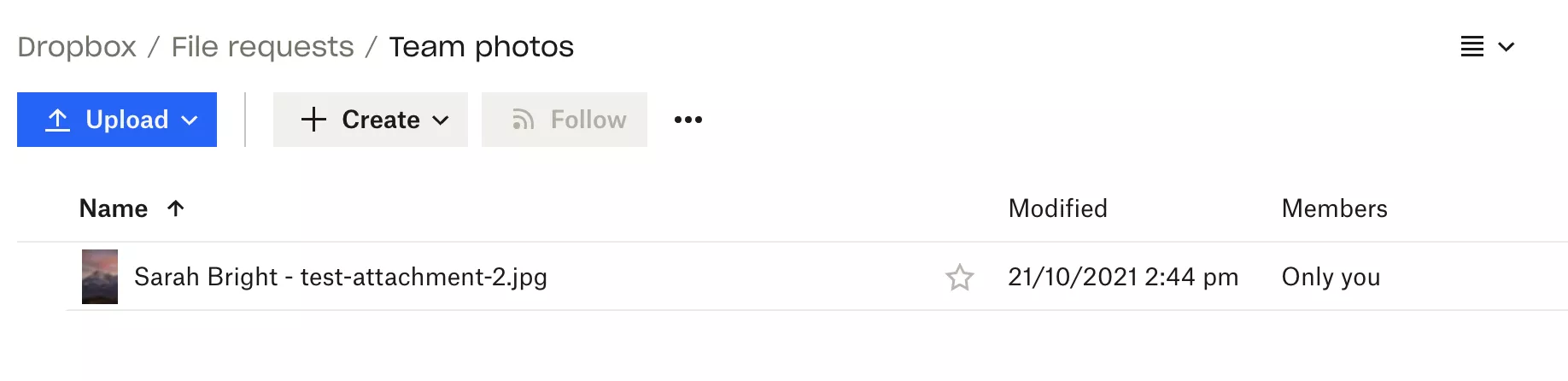
No. Uploaders who aren't signed in to Dropbox are asked for their name and email address, but the email isn't passed on to you — Dropbox only adds their name to the uploaded file's name. Signed-in users upload without providing anything extra.
There's also no way to add form fields to a file request. If you need a phone number, a reference ID, or answers to questions alongside the files, Dropbox can't collect them.
Can You Customize File Requests or Remove Dropbox Branding?
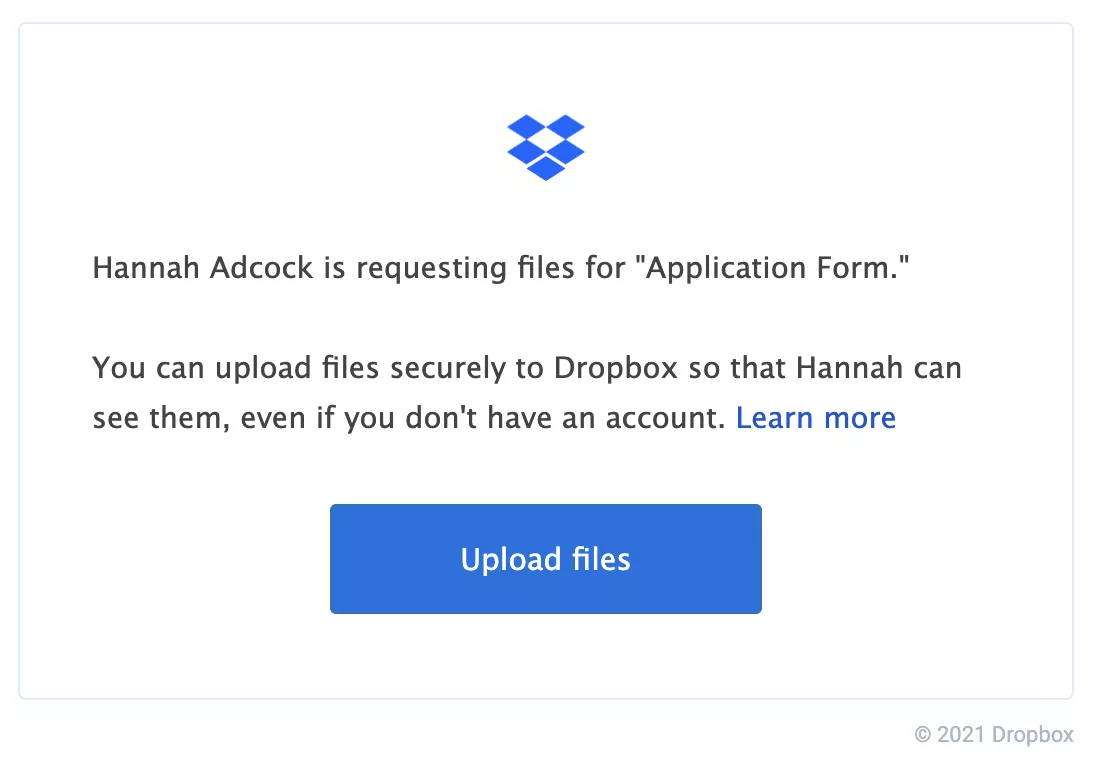
No. The upload page is designed by Dropbox, in Dropbox's branding, and there's no white-label option on any plan. After uploading, your clients are invited to sign up for Dropbox.
How to Close, Reopen, or Delete a Dropbox File Request
When you've received everything you need:
- Close a request: open it from the Opened tab and click Close request. The link stops accepting uploads. Files you've already received stay in your folder.
- Reopen a request: find it under the Closed tab and click Reactivate request.
- Delete a request: this is only possible from the Closed tab — close it first, then delete. Deleted requests can't be reopened.
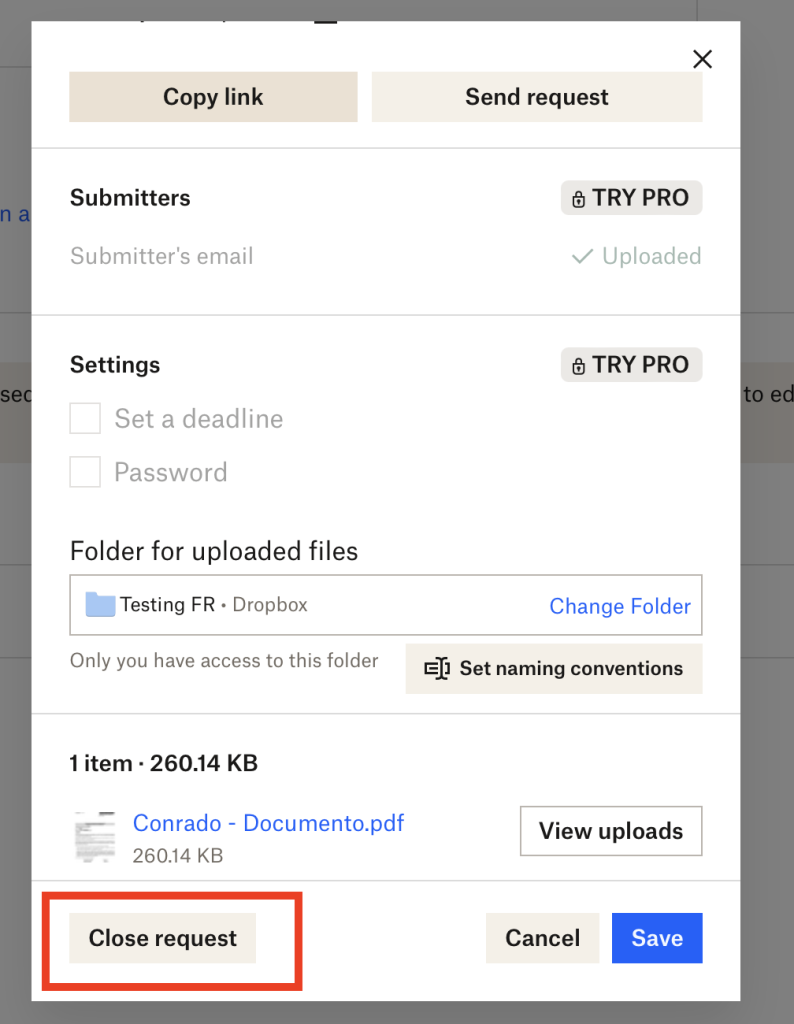
To edit a request instead — change the title, description, folder, deadline, or password — open it from the Opened tab and make your changes.
Who Can You Send a File Request To?
Anyone. Uploaders don't need a Dropbox account — that's the feature's biggest strength. You can enter email addresses when you create the request, or copy the link and send it through your own email, a text message, or anywhere else.
Can You Create a Public Dropbox Upload Page?
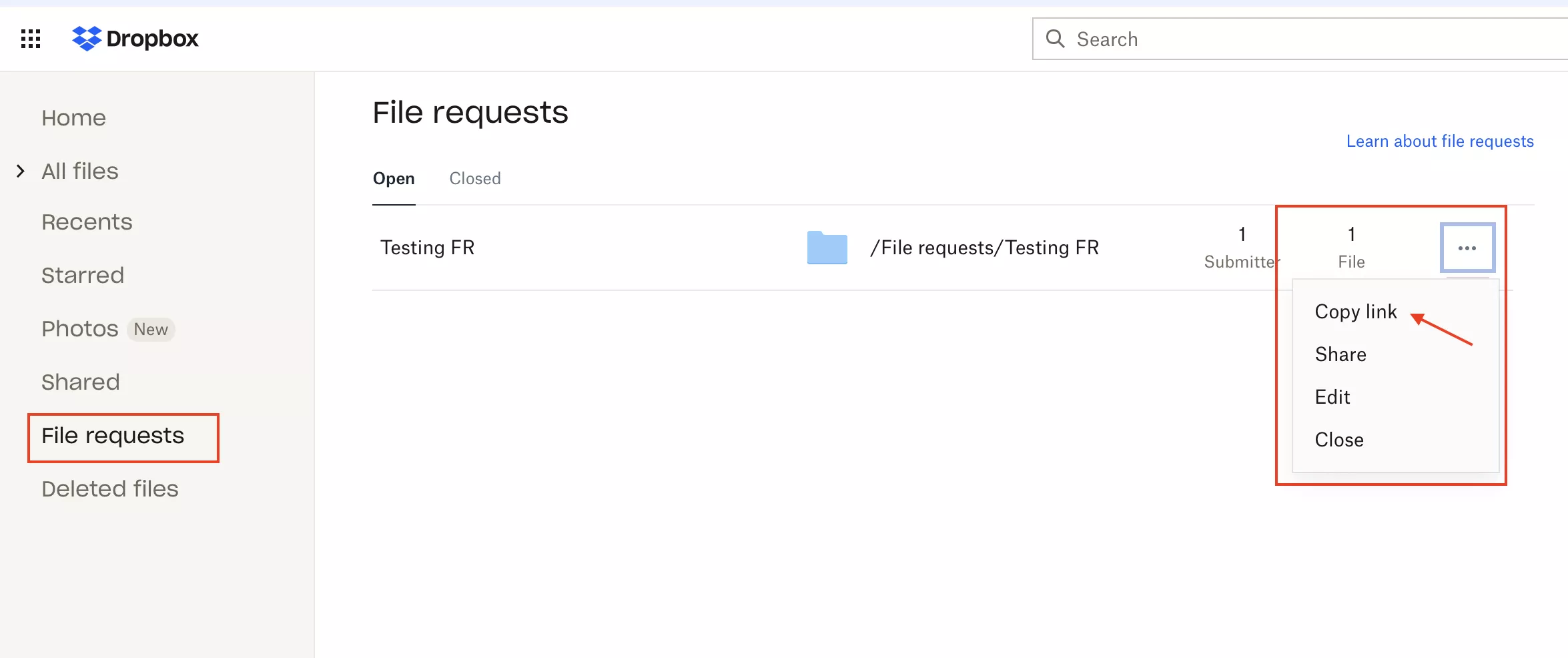
Yes — a file request link is a public upload page. Anyone who has the link can upload. To get the link for an existing request, go to File requests in the sidebar, click the three-dots menu next to the request, and copy the link.
Keep in mind the page will carry Dropbox branding and can't collect any information beyond the files themselves. For more ways to receive files in your Dropbox — including shared folders — see our guide to letting others upload to your Dropbox.
What Are the Alternatives to Dropbox File Requests?
Among cloud storage providers, Dropbox has the best file request feature. OneDrive's file requests are more limited, and Google Drive has no true file request feature — you can only share folders, which gives uploaders access to each other's files.
The trade-off is that file requests are a side feature of a storage product, not a document collection tool. If you've hit the limits described above — no reminders, no form fields, no branding, no uploader identity — the next step is dedicated file request software. We've written a detailed Dropbox File Request vs File Request Pro comparison that goes through the differences feature by feature.
When You Need More Than Dropbox: File Request Pro
File Request Pro connects to your Dropbox account and replaces the generic upload page with a branded checklist: your logo, the exact documents you need, form fields for any extra information, and automatic reminders for people who haven't finished. Files still land in your Dropbox, organized into folders by client name, email, or any field you choose.
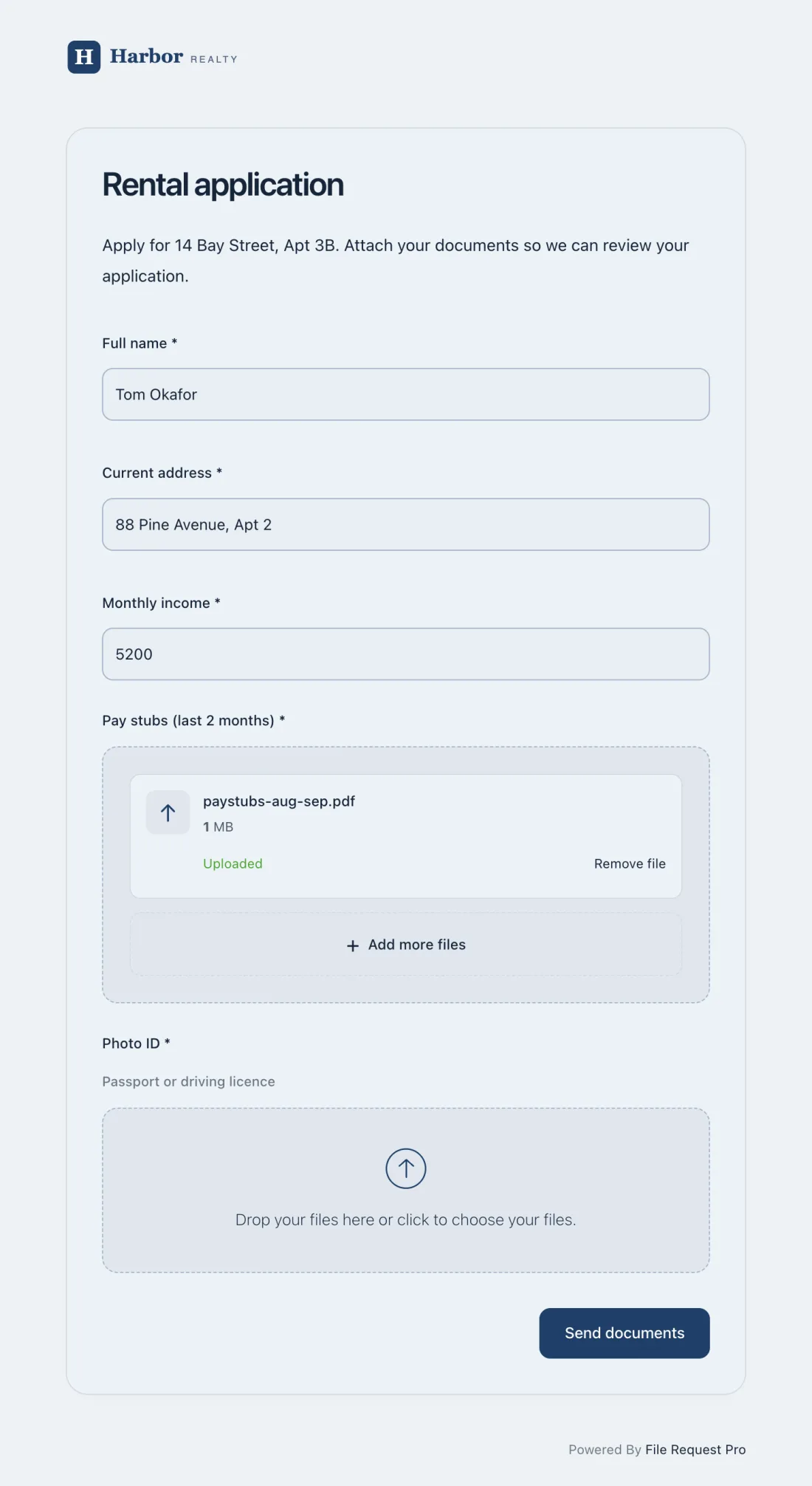
Start a free trial and connect your Dropbox in a couple of minutes. For larger uploads or a storage-independent workflow, see how to receive large files from clients.
Dropbox File Request FAQ
Where do uploaded files go?
Into the folder you chose when creating the request. Dropbox also emails you a notification for each upload.
Can uploaders see each other's files?
No. Each uploader can only add files. Nobody but you (and anyone you've shared the destination folder with) can see what's been uploaded.
Do Dropbox file requests expire?
Not on their own. A request stays open until you close it, you hit a deadline you set (paid plans), or your storage runs out.
Is there a limit on how many file requests you can create?
Dropbox doesn't publish a cap on the number of file requests. The practical limit is your storage quota, since every upload counts against it.
Can I use a file request on the Dropbox mobile app?
You can receive uploads from any device — the upload page works in any mobile browser. Creating and managing requests is done on dropbox.com.
