A client opens a SharePoint link you sent them in the spring and gets "access denied". Or a vendor who used to type in an emailed code now sees a guest sign-in page from your organization. Both come from the same change: Microsoft is retiring the SharePoint one time passcode (SharePoint OTP) for external sharing in SharePoint and OneDrive.
The fix is usually small. Each affected person needs one guest account in your directory, and their old links work again. If you share with clients only to collect their files, the last section covers other ways to do that.
What the SharePoint one time passcode retirement changes
SharePoint's own emailed code for outside people is going away. External sharing now runs through Microsoft Entra B2B, Microsoft's guest account system.
Until now, you shared a file with a client's email address using a Specific people link, and SharePoint emailed them a single-use code. Usually no account was created in your directory.
Under Entra B2B, everyone you share with gets a guest account in your directory. Your Entra rules for guests apply to them, including multifactor authentication if your policies require it.
| SharePoint OTP (retiring) | Entra B2B guest (replacement) | |
|---|---|---|
| Account in your directory | No | Yes, one guest account per person |
| How the person signs in | Code emailed by SharePoint | Their work or Microsoft account, or a code emailed by Entra |
| Conditional Access policies | Don't apply | Apply |
| Can edit in Word, Excel or PowerPoint | No | Yes |
Timeline (it has moved twice)
Microsoft announced the change in Message center post MC1243549 on March 4, 2026. The most recent update when we checked (October 22, 2026) is from October 1, 2026. It gives this schedule:
- May to July 2026: new external sharing switches to Entra B2B. Microsoft says this phase is fully rolled out.
- Mid-October 2026: SharePoint OTP retirement begins.
- End of November 2026: retirement expected to be complete.
- GCC, GCCH and DoD: excluded for now. Microsoft will post their dates in Message center later.
Earlier versions of the same post said July to August 31, then October 1 to 31. Microsoft's Learn pages still say "during October 2026". If you plan around a date, check MC1243549 in your Microsoft 365 admin center first.
You can't pick the date for your tenant, opt out, or apply the change to some sites only. Microsoft selects tenants automatically, and the change applies to the whole tenant.
SharePoint B2B integration is now always on
You can't turn it off. Microsoft turned on the SharePoint and OneDrive integration with Entra B2B for new external sharing between May and July 2026.
If you used to control this with Set-SPOTenant -EnableAzureADB2BIntegration, that setting no longer changes anything in commercial tenants.
What your clients and partners will see
What happens depends on whether the person already has a guest account in your directory and when you shared with them.
- They already have a guest account: nothing changes.
- You shared with them after the switch to Entra B2B: a guest account was created for them automatically. They sign in with their own work or Microsoft account, or get a code by email.
- You shared a Specific people link with them earlier, and they have no guest account: those links show "access denied" once the retirement reaches your tenant.
- You sent an Anyone link: no change. Microsoft says the retirement doesn't affect Anyone links.
The first time a guest signs in, Microsoft shows a Review permissions page that links to your organization's privacy statement. They select Accept to continue. Warn clients about it, because an unexpected consent screen from another company looks like phishing to careful people.
Is the SharePoint verification code going away?
Not completely. The code SharePoint sent on its own is retiring. Entra B2B has its own email one-time passcode, and Microsoft is keeping it. It's on by default unless your admin turned it off.
A guest gets an Entra code when they have no work account, no Microsoft account and no other way to sign in. In that case they select Send code, check their email and type the code in. The code is valid for 30 minutes, and their session lasts 24 hours before they need a new one.
The same applies to the OneDrive verification code. The retirement covers OneDrive and SharePoint alike.
SharePoint verification code not received?
When a client says the code never arrived, work through these in order:
- Check which address you shared with. The code goes to the email address on the invitation. If the client reads mail at a different address or an alias, the code won't be there.
- Check junk and quarantine. Their company's mail filter may hold automated messages. Their IT team can release it.
- Request a fresh code. A code stops working after 30 minutes.
- Look for a sign-in page instead of a code. If that address has a work or Microsoft account, Entra asks the person to sign in with it and sends no code.
- Reshare. If none of that works, share one file with them again. That creates their guest account if it's missing (see below).
How to fix "access denied" on older SharePoint links
Once a matching guest account exists for the email address on the original link, the person gets their old links back, so you don't have to reshare every file. There are two ways to create that account.
Option 1: share one item again (anyone with sharing rights)
- Open any file, folder or site the person should have.
- Select Share and enter the same email address you used the first time.
- Send it.
This creates the guest account and restores access to everything you shared with them before. Microsoft doesn't create duplicates if the person already has a guest account.
Option 2: create the guest account (admin)
- Sign in to the Microsoft Entra admin center with at least the Guest Inviter or User Administrator role.
- Go to Entra ID > Users.
- Select Invite external user.
- Enter the Email used on the original sharing link and a Display name. Select Send invite message if you want Microsoft to email them.
- Select Review and invite, then Invite.
If a colleague tries to reshare and can't, check the Entra guest settings. When an Entra rule is stricter than a SharePoint setting, the Entra rule wins.
What SharePoint admins should do now
- Find the people who will lose access. In each site, go to Settings > Site usage, and under Shared with external users select Run report. Microsoft says the User E-mail column lists guests invited through SharePoint OTP who don't have a guest account yet. For the whole tenant, the audit log and Microsoft Graph Data Connect are the other options.
- Create guest accounts ahead of time for clients and partners who still need access, using the email address on their original link.
- Check who can invite guests. In the Entra admin center, go to Entra ID > External Identities > External collaboration settings > Guest invite settings. If only admins can invite, staff resharing with a client will fail. You can give the Guest Inviter role to the people who share externally. Domain allow and block lists under Collaboration restrictions apply too.
- Keep the email code on. Go to Entra ID > External Identities > All identity providers, open the Built-in tab and select Configured next to Email one-time passcode. Check that Email one-time passcode for guests is set to Yes. With it off, clients without a Microsoft account are asked to create one.
- Review guest access expiration. In the SharePoint admin center, go to Policies > Sharing > More external sharing settings. Decide on "Guest access to a site or OneDrive will expire automatically after this many days". The old "People who use a verification code must reauthenticate" setting gives way to the Entra code settings under B2B.
- Check Conditional Access for guests. Guests now fall under your Entra policies. A rule that requires MFA for all users will ask your clients for it too.
- Tell your staff. Some outside contacts will see "access denied" on old links, and resharing one file fixes it. Put that line in your help desk notes.
If you share with clients only to collect their files
Since the switch to Entra B2B, every client you add to a Specific people link becomes a guest account in your directory. That makes sense for a partner working with you on a project for months. It's a lot of overhead for a client who sends you a tax return once a year. Each of those accounts is one more to review and remove later.
If all you need is to receive files, you have other options.
| Option | Guest account needed? | What to watch |
|---|---|---|
| Specific people link with edit rights | Yes | The person can see and change the folder |
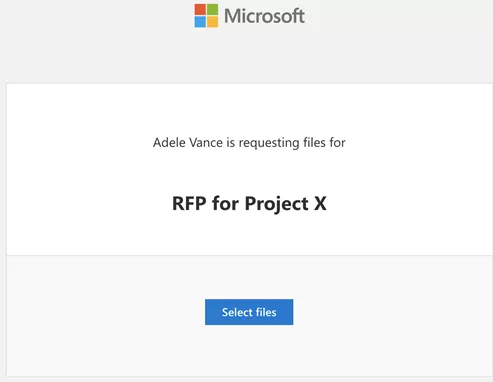
| SharePoint or OneDrive Request files | No | Needs Anyone links turned on |
| Anyone link with edit rights | No | Anyone with the link can open the whole folder |
| Microsoft Forms file upload | Not possible | Upload questions only work for people inside your organization |
| Upload page from a third-party tool | No | Usually a paid plan, and an admin approves the app |
Request files still works, if Anyone links are on
SharePoint's Request files creates an upload-only link. People can add files but can't see, edit or download what's already in the folder. It's built on Anyone links, which the retirement doesn't touch. The catch: Microsoft says "Disabling Anyone links also disables Request files on SharePoint and OneDrive". If your organization has turned Anyone links off, check with your admin before you plan around Request files. Our guide to SharePoint Request files covers the setup and the admin settings, and the OneDrive file request guide covers the OneDrive version.
Microsoft Forms isn't a way around it. File upload questions only work when the form is limited to people in your organization. Our guide to sharing Microsoft Forms with external users has the details. And if you were planning a full client portal on SharePoint, every client becomes a guest there too. Our SharePoint client portal guide walks through what that involves.
An upload page that needs no account
File Request Pro gives you an upload page you can send to clients. They open it, add their files and submit. They don't need a Microsoft account, a guest account or a code. The files pass through our servers on the way to the SharePoint folder you choose. You can add a password if you want one.
A few things to know before you try it:
- SharePoint is on the Pro plan and up. Google Drive, OneDrive and Dropbox are on every plan.
- The app asks for the Files.ReadWrite and Sites.ReadWrite.All permissions. With Microsoft's default tenant settings, an admin approves it once.
- The free trial runs for 15 days or 25 files, includes SharePoint, and needs no credit card.
If that fits how you collect documents, start a free trial and connect a SharePoint folder.
SharePoint one time passcode FAQ
Is Microsoft removing one-time passcodes completely?
No. Only the SharePoint OTP is retiring. The Entra B2B email one-time passcode stays, and it's on by default.
Do I have to reshare every file?
No. One guest account per person restores access to everything you shared with them before. Resharing one item, or having an admin create the guest account, is enough.
Can we delay or opt out?
No. Commercial tenants can't opt out, choose a date, or limit the change to certain sites.
Does this affect Anyone links or Request files?
No. Microsoft says the retirement doesn't affect Anyone links, and Request files runs on them.
Does it apply to government clouds?
Not yet. Microsoft excluded GCC, GCCH and DoD from both phases and will post their dates in Message center.
Will this create duplicate guest accounts?
No. If the person already has a guest account in your directory, Microsoft uses it.