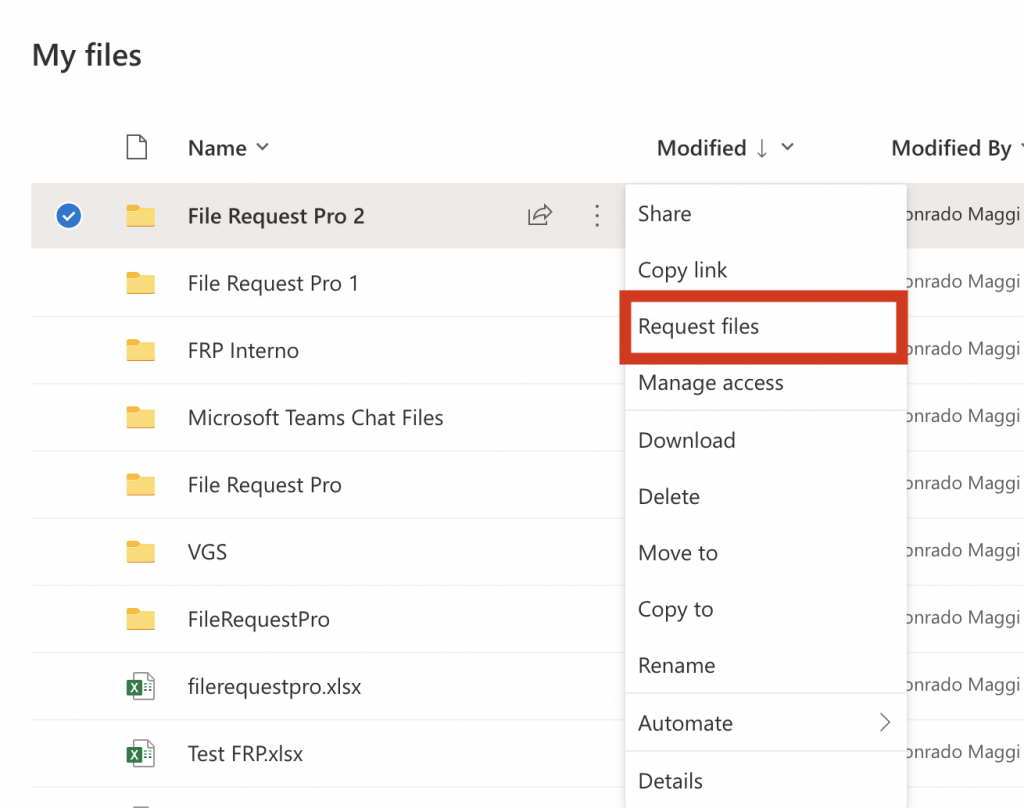
You need files from a client, an applicant or a relative, and they don't have a Microsoft account. Can they upload to OneDrive without an account? It depends on which OneDrive you have. On a work or school account, yes: a Request files link takes uploads from anyone. On a personal account (OneDrive for home), Microsoft has no upload-only link, and adding files to a shared folder usually means signing in.
Quick answer: On OneDrive for work or school, open the folder, select Request files, describe what you need, and send the link. Anyone with it can upload without a Microsoft account, and they can't see what's in the folder. It only works if your admin allows Anyone links. Personal OneDrive doesn't have Request files at all.
Can someone upload to your OneDrive without an account?
Here is how each option behaves for the person sending you files.
| Your account | Option | Does the uploader need an account? | What they can see |
|---|---|---|---|
| Work or school | Request files link | No. They type a first and last name | Only the upload page |
| Work or school | Anyone link to a folder, with editing allowed | No | Everything in the folder, which they can also edit or delete |
| Work or school | Folder shared with specific people | Yes. They sign in or verify as a guest | Everything in the folder |
| Personal (OneDrive for home) | Folder shared with editing allowed | Yes, a Microsoft account to edit or add files | Everything in the folder |
| Work or school | Upload page from a third-party tool | No | Only the upload page |
The only built-in way to take uploads from someone with no account, without opening your folder, is Request files on a work or school account.
How to let others upload to OneDrive without an account
Request files gives you an upload-only link to one folder. Microsoft makes it available only if:
- you use OneDrive for work or school;
- your admin has enabled Anyone links;
- folder permissions for Anyone links are set to View, edit, and upload or View and upload;
- Allow only specific security groups isn't turned on.
It isn't offered on OneDrive for home, Office 365 operated by 21Vianet or Office 365 Germany. As Microsoft's admin page puts it: "Disabling Anyone links also disables Request files on SharePoint and OneDrive."
If those boxes are ticked, setup is five steps:
- In OneDrive, select the folder where you want the files to go.
- Select Request files.
- Type a description of the files you need. Uploaders see this text, so be specific: "Your signed lease and a photo ID" works better than "Documents".
- Select Next.
- Select Copy link to send it yourself, or enter email addresses and an optional message so OneDrive sends it. Then select Done.
Our OneDrive file request guide covers the setup in more detail, including what to check when the button is missing.
What your uploaders see (no Microsoft account needed)
Uploaders don't need OneDrive or a Microsoft account. They open the link, choose Select files (and Add more files if they have more), then select Upload. If they aren't signed in, OneDrive asks for a first and last name. If they are signed in, their identity is recorded with the upload instead.
Uploaders can't view, edit, delete or download anything in the folder, and they can't see who else uploaded. They get a confirmation after a successful upload.
On your side:
- You get an email whenever files are uploaded.
- Each file gets a prefix that shows who sent it.
- If two files share a name, OneDrive adds a number to the second one.
- The names people type aren't validated. Microsoft says they are not proof of identity, so "Jane Smith" could be anyone holding the link.
To stop accepting files, select the folder, open the ... menu and choose Manage Access. Under Links Giving Access, open the menu next to the request link, select the x and then Delete link. You can't undo this. To collect again, create a new request.
Personal OneDrive: why there's no upload-only link
OneDrive for home doesn't have Request files, and paid Microsoft 365 Personal and Family plans don't add it.
The closest option is a folder shared with editing turned on. It isn't upload-only, and it has two catches.
First, uploaders need an account. Microsoft's sharing help says "Allow editing" lets people "who are signed in with a Microsoft Account" edit what you shared. Viewing and downloading can work without signing in; adding files usually can't.
Second, they get the whole folder. People with edit permission can "copy, move, edit, rename, share, and delete anything in the folder."
If you go this way anyway, keep the damage small:
- Create an empty folder for each person, so nobody sees anyone else's files.
- Share it with editing allowed. Microsoft 365 subscribers can also set an expiration date or a password.
- Tell the sender they can create a free Microsoft account with the email address they already use.
- Move the files somewhere private once they arrive, then stop sharing the folder.
If you can use a second service, Dropbox file requests work on every Dropbox plan, including the free Basic plan, and uploaders don't need a Dropbox account. Our guide to letting others upload to your Dropbox walks through it.
When your work account blocks Anyone links
Admins can turn Anyone links off, and Microsoft's guidance for preparing a tenant for Copilot tells them to "disable or restrict use of company-wide sharing groups and Anyone links at the tenant level." Microsoft's sharing docs also say "OneDrive settings other than Anyone disable file requests." When that happens, the Request files button disappears from every folder and there's nothing you can switch on yourself.
You have three ways forward:
- Ask IT. Three admin settings matter: Anyone links for the organization, the Anyone link permission for folders, and a Request files setting for OneDrive. Your OneDrive can never be more open than the organization allows. Admins can also make request links expire after a set number of days.
- Share with specific people. Outsiders then sign in as guests (or verify their email) and can see and change everything in the folder. That's fine for a partner you work with and a lot to ask of a client sending three PDFs.
- Use an upload page outside OneDrive. The files still end up in your OneDrive, but uploaders never touch a OneDrive link. More on that below.
If your files belong in a team site rather than your own OneDrive, the same rules apply there. See our guide to Request files in SharePoint. To weigh Request files against guest sharing, Forms and other options, read our comparison of SharePoint upload options for external users.
Other workarounds and what they cost you
When Request files isn't available, these are the usual fallbacks:
| Workaround | Account needed? | The catch |
|---|---|---|
| Shared folder with editing allowed | Work: no with an Anyone link. Personal: a Microsoft account | Uploaders can see, download, rename and delete everything in the folder |
| Microsoft Forms with a file upload question | Yes, an account in your organization | Outsiders can't use the upload question at all |
| Email attachments | No | Size limits, files buried in your inbox, and you save each one by hand |
| The sender shares a link from their own cloud | Yes, theirs | They need storage of their own, and you download and re-upload |
Microsoft Forms looks like the obvious fallback, but its file upload question is "only available when 'Only people in my organization can respond' or 'Specific people in my organization can respond'" is selected. A form open to anyone can't take files. Our post on Microsoft Forms file upload covers the limits (10 files per question; 10 MB, 100 MB or 1 GB per file) and the fixes.
What OneDrive Request files doesn't do
Request files solves the account problem, and for a one-off batch that's often enough. Collect from clients every week and the gaps show:
- Only files and a name. Setup is a description and a link, with no fields for an email address, a case number or a date.
- One folder per request. Every upload lands in the same folder. Sorting by client is on you.
- No deadlines or reminders. You can't set a due date or chase people who haven't uploaded. The link works until you delete it, unless your admin sets an expiry.
- Microsoft's branding. The upload page is OneDrive's, with no setting for your logo or your domain.
Size is rarely the problem: OneDrive accepts files up to 250 GB, and Microsoft's file request page lists no separate limit. Uploads count against your OneDrive storage.
An upload page that saves to OneDrive and needs no account
If Request files is blocked, or you need more than a name with each file, a dedicated upload page fills the gap. File Request Pro is one option. You build a page, connect your OneDrive and pick the folder. Clients open your link, fill in the fields you ask for and upload. They don't need an account or a login, and they never see your OneDrive.
- No Anyone links or guest accounts. File Request Pro saves files into your OneDrive through its Microsoft app. On Microsoft's default tenant settings, an admin approves that app once.
- Fields with the files. Ask for an email, a client name or a reference number on the same page. Use the answers to name subfolders, such as
Clients / Acme Studio / September. - Reminders to people who haven't uploaded, on Lite and up.
- Your logo on the page on every plan, with custom colors on Lite and up.
OneDrive is on every plan, starting with Starter at $19 a month (see pricing). Files pass through File Request Pro's servers on the way to your OneDrive. The per-file limit is 1 GB on Starter and Lite, 5 GB on Pro and 10 GB on Business and Enterprise. For very large single files, Request files can take more. You can try it free for 15 days or 25 files, with no credit card.
Frequently asked questions
Can someone upload to my OneDrive without an account?
Yes, if you have OneDrive for work or school and your admin allows Anyone links. Send them a Request files link: they type their name and upload without a Microsoft account. Personal OneDrive has no equivalent.
Does Request files work on personal OneDrive?
No. Microsoft says Request files isn't available for OneDrive for home, and paid Microsoft 365 Personal and Family plans don't change that.
Can uploaders see my other OneDrive files?
Not with Request files. Uploaders can't view, edit, delete or download anything in the folder, or see who else uploaded. A shared folder with editing allowed is different: they can see and change everything in it.
Can a OneDrive upload link expire?
Not from your side. Microsoft's file request steps have no expiry setting, but your admin can make request links expire after a set number of days. Otherwise, delete the link in Manage Access when you're done.
Is there a file size limit for OneDrive uploads?
OneDrive accepts files up to 250 GB each. Microsoft's file request page doesn't list a different limit for request uploads.
Can people outside my organization upload files through Microsoft Forms?
No. The file upload question only works when the form is limited to people in your organization. For outside uploads, use a Request files link or an upload page.