Microsoft Forms includes a file upload question type that lets respondents attach documents, images, and other files within a form. It works for internal use, but strict limits on file size, account requirements, and external access trip up most teams.
This guide covers how to add file uploads, the exact size and file type limits, why the upload option gets greyed out, where files are stored, and what to do when you need to collect files from people outside your organization.
How to Add File Upload to Microsoft Forms
Adding a file upload field takes about a minute. You need a Microsoft 365 work or school account. File uploads are not available on personal Microsoft accounts.
Step 1: Create a new form
Go to forms.office.com and sign in with your work or school account. Click New Form to start, or open an existing form.
Step 2: Add a new question
Click Add new to insert a question. You will see the standard question types: Choice, Text, Rating, and Date.
Step 3: Select "Upload file"
Click the More question types menu (the three dots or chevron) and select Upload file. Microsoft Forms will display a notice that a folder will be created to store uploaded files. Click OK to proceed.
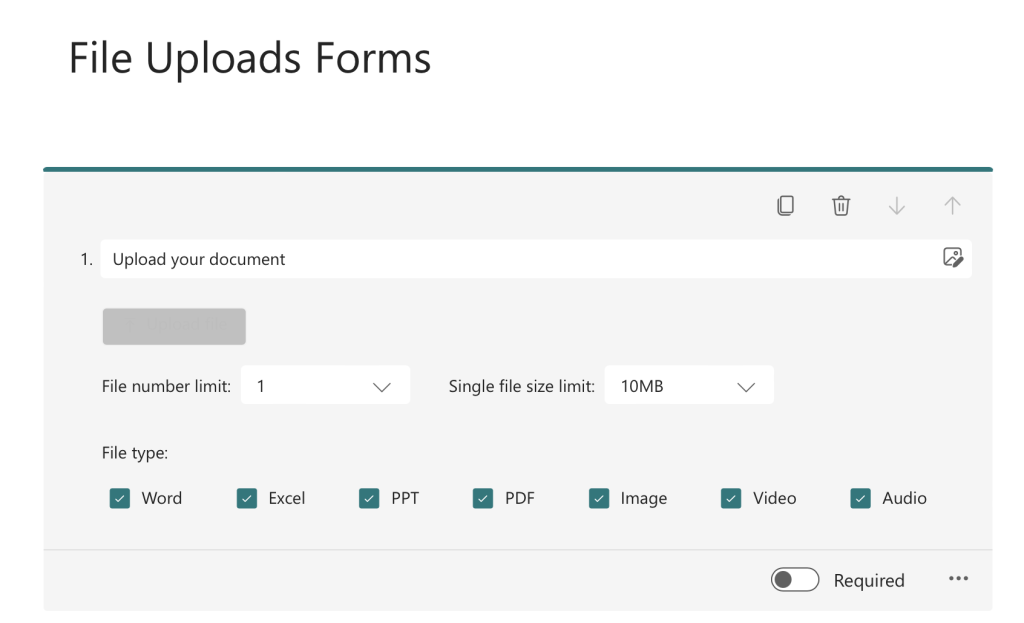
Step 4: Configure file upload settings
Customize three settings on the file upload question:
- File number limit — Maximum files per respondent per question (up to 10).
- Single file size limit — 10 MB, 100 MB or 1 GB per file.
- File type restrictions — Restrict to Word, Excel, PPT, PDF, Image, Video, or Audio. Leave open to accept any type.
Step 5: Send the form
Click Collect responses to distribute your form. By default, the form is set to "Only people in my organization can respond." Keep this setting. File upload only works when respondents are authenticated. Changing to "Anyone can respond" disables file upload.
Microsoft Forms File Upload Limits
Microsoft Forms imposes limits at the file level, the question level, and the storage level.
| Setting | Limit |
|---|---|
| Max file size (personal accounts) | Not available (requires work/school account) |
| Max file size (Microsoft 365 Business/Education) | 10 MB default, configurable up to 1 GB |
| Max files per question | 10 |
| Storage location | Your OneDrive (your forms) or the group's SharePoint site (group forms) |
| Total storage capacity | The OneDrive or group site's storage quota (OneDrive is typically 1 TB) |
The default is only 10 MB per file, which is low enough to block most video files and large PDFs. If you are collecting anything beyond simple documents, increase this to the 1 GB maximum in the question settings. Respondents who exceed the limit see an error and cannot submit.
Allowed file types
When you restrict file types, Microsoft Forms offers seven categories. Microsoft's support article lists every format in each one; the common ones are:
- Word — .doc, .docx
- Excel — .xls, .xlsx
- PPT — .ppt, .pptx
- PDF — .pdf
- Image — .png, .jpg, .jpeg, .gif, .bmp
- Video — .mp4, .mov, .wmv, .avi
- Audio — .mp3, .wav, .wma
There is no option for custom file extensions. If you need ZIP archives, CAD files (.dwg), JSON, or any specialized format, you must leave file type restrictions off entirely.
Where Are Uploaded Files Stored?
Where the files go depends on who owns the form:
- A form you own: uploads go to your OneDrive for Business.
- A group form (one created in a Microsoft 365 group or Teams channel): uploads go to the document library on that group's SharePoint site.
For a form you own, the folder path is:
OneDrive > Files > Apps > Microsoft Forms > [Form name] > [Question folder]
Each form gets its own folder, and each file upload question gets a subfolder inside it.
Three storage details that matter:
- Uploads count against your OneDrive quota (or the group site's storage, for a group form). If your OneDrive fills up, respondents get an error when trying to upload.
- The folder structure is created automatically the first time you add a file upload question.
- Deleting a form does not delete the uploaded files. You must remove them from OneDrive separately to reclaim storage.
Why Is File Upload Greyed Out in Microsoft Forms?
You try to add a file upload question and the option is greyed out or missing entirely. Check these four causes in order. If you're on Google Forms instead, the causes are different (Shared Drives and admin policies); see our Google Forms file upload troubleshooting guide.
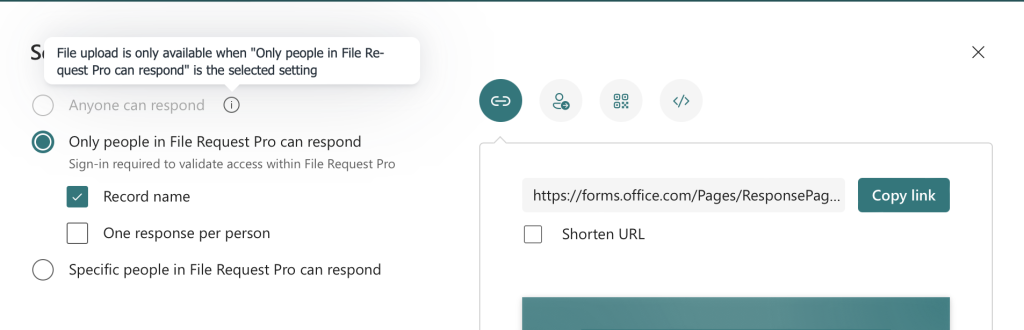
Cause 1: The form is set to "Anyone can respond"
This is the most common cause. Microsoft Forms disables file uploads when responses are open to "Anyone can respond" (tenants on the older UI show it as "Anyone with the link can respond"). File upload requires authenticated respondents. (If you need anonymous responses without file uploads, see how to make Microsoft Forms anonymous.)
The fix: Click Collect responses and change the audience to "Only people in my organization can respond." The file upload option becomes available again.
Cause 2: You are using a personal Microsoft account
File upload requires a Microsoft 365 work or school account. If you are signed in with a personal Outlook.com, Hotmail, or Live account, the file upload option does not appear.
The fix: Sign in with your organization's Microsoft 365 account. Without a work or school account, you cannot use file uploads in Microsoft Forms.
Cause 3: Your organization's SharePoint or OneDrive settings block it
The Forms admin settings have no switch for file upload, but SharePoint and OneDrive settings can stop it. Microsoft says file upload questions "are not available for personal forms when Microsoft Information Barrier is enabled", though you can still add one to a group form. Uploads also fail when your organization has turned off "People in your organization" sharing links for your OneDrive. Forms then shows the error "We weren't able to create an upload file folder in OneDrive for Business".
The fix: Create the form as a group form, from the Microsoft 365 group or Teams channel. Or send your IT admin Microsoft's guide to resolving file upload errors in Microsoft Forms.
Cause 4: The form is embedded and respondents are not signed in
File upload works in embedded forms only if the respondent is signed in to their organizational Microsoft account. On a public website where visitors are not authenticated, the file upload field is greyed out or shows an error.
The fix: Ensure respondents are signed in before accessing the embedded form. For public-facing file collection, embedded Microsoft Forms will not work.
Quick diagnostic checklist
| Symptom | Most Likely Cause | Fix |
|---|---|---|
| File upload greyed out in question types | Form set to "Anyone can respond" | Change to "Only people in my organization" |
| File upload option missing entirely | Personal Microsoft account | Sign in with a work/school account |
| Upload file is missing, or adding it shows an error | Information Barriers or SharePoint/OneDrive sharing settings | Use a group form or ask IT |
| File upload fails on embedded form | Respondent not signed in | Require sign-in or use a different tool |
Can External Users Upload Files to Microsoft Forms?
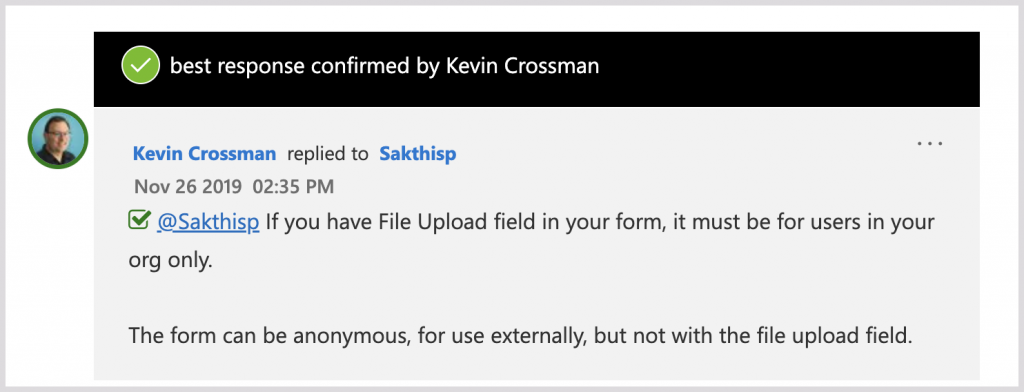
No. Microsoft Forms does not support file uploads from users outside your organization. This is a hard limitation by design, not a configuration issue.
Microsoft only accepts uploads from people who sign in with an account in your own organization. If you change the sharing setting to "Anyone can respond" to allow external access, the file upload question is automatically disabled. Forms then shows a note that file upload is only available when the audience is "Only people in my organization can respond" or "Specific people in my organization can respond". Our guide on sharing Microsoft Forms with external users covers all available sharing configurations and their restrictions.
What this means in practice
- Clients outside your organization cannot upload files through your form, even if they have their own Microsoft 365 account in a different tenant.
- Vendors and contractors without Microsoft 365 accounts are locked out.
- Public-facing forms (event registrations, applications, intake forms) cannot include file upload questions.
Workaround 1: OneDrive file requests
OneDrive for Business has a "Request files" feature that creates an upload link for external users. Recipients upload files without needing a Microsoft account, and files go to a specific OneDrive folder.
Limitations: OneDrive file requests are upload-only. There is no form builder, so you cannot collect names, project details, or other information alongside the files. You also cannot restrict file types. And it only exists when your organization allows Anyone links (see below).
Why Request files is often missing: Anyone links
OneDrive's Request files option only works when your tenant allows Anyone links, the sharing links that open without a sign-in. Microsoft's admin documentation is explicit: "Disabling Anyone links also disables Request files on SharePoint and OneDrive." Many IT teams keep Anyone links off on purpose. If your admin restricts sharing outside the organization, check that you can see Request files before you plan around it.
Getting Request files back means asking IT to turn Anyone links on again, which reopens the anonymous links they switched off on purpose. The other built-in route is adding each client and vendor as a guest and sharing a folder with them, which means one account per person to create and manage. Our guide to collecting files from external users in SharePoint compares every option and what each one needs your admin to allow.
Workaround 2: Use a dedicated file collection tool
If you need form fields alongside file uploads from external users, a tool like File Request Pro fills the gap. External users upload files without any account. Files are saved to your OneDrive (every plan) or SharePoint (Pro plan and up), and you can add form fields, restrict file types, brand the upload page, and send automated reminders. File Request Pro doesn't rely on Anyone links or guest accounts, so it keeps working when your admin has turned them off.
How to Upload Files from Microsoft Forms to SharePoint
Files from a form you own go to your OneDrive, not SharePoint. If the files should land in a SharePoint library, you have three options.
Option 1: Create it as a group form
Create the form from a Microsoft 365 group or Teams channel. Uploads then go to the document library on the group's SharePoint site, with no flow to build. But they always land in that group's site, and you can't choose another library.
Option 2: Power Automate flow
Microsoft Power Automate can automatically copy files from OneDrive to SharePoint each time a form response is submitted.
Setup steps:
- Go to make.powerautomate.com and sign in.
- Create an Automated cloud flow with the trigger "When a new response is submitted" (Microsoft Forms).
- Add "Get response details" to retrieve the form data.
- Add "Get file content" (OneDrive for Business) using the file upload response value.
- Add "Create file" (SharePoint) — select your site, document library, and file name.
- Save and test.
This works, but you now have a flow to maintain. If it fails (connection issue, renamed form, or quota error), files pile up in OneDrive without reaching SharePoint until someone notices.
Option 3: File Request Pro's SharePoint integration
File Request Pro connects to SharePoint (Pro plan and up) and saves each upload into the document library and folder you choose. There's no OneDrive step and no Power Automate flow to maintain. Files pass through File Request Pro's storage on the way; on Team and Enterprise, Pipeline mode deletes that copy once the file is in SharePoint. External users can upload without a Microsoft account, and you can name subfolders after any form field, such as the respondent's name or email.
Microsoft Forms File Upload vs. Dedicated File Collection Tools
Microsoft Forms handles basic internal file collection. For files from clients, vendors, or anyone outside your tenant, the limitations stack up fast.
| Feature | Microsoft Forms | File Request Pro |
|---|---|---|
| Collect files from external users | No (organizational accounts only) | Yes (no account required) |
| Max file size | Up to 1 GB | 1 GB (Lite), 5 GB (Pro, Team) or 10 GB (Enterprise) per file |
| Storage destination | Your OneDrive (your forms) or the group's SharePoint site (group forms) | OneDrive, SharePoint, Google Drive, or Dropbox |
| SharePoint integration | Group forms save to the group's site; any other library needs a Power Automate flow | Built in: saves to the library and folder you pick (Pro and up) |
| Custom branding | Limited (header image and color) | Logo and colors on every plan; custom CSS from Team; custom domain on Enterprise |
| Automated reminders | No | Yes (scheduled email sequences) |
| File type restrictions | Broad categories only | Specific extensions (.jpg, .pdf, .dwg, .json) |
| Auto-organize uploads | One folder per form, one subfolder per question | Auto-sorted by respondent, project, or date |
| Conditional logic for uploads | Basic branching only | Field-level show/hide based on responses |
| Works embedded on websites | Yes (sign-in required) | Yes (no sign-in required) |
| Cost | Included with Microsoft 365 | From $39/month; SharePoint from Pro ($79/month) |
When Microsoft Forms is the right choice: Internal file collection where everyone has a Microsoft 365 account, branding is not needed, and storing files in OneDrive or a group site works for you.
When you need a dedicated tool: External clients or public-facing forms, delivery to a SharePoint library you choose, branded upload pages, or automated follow-up for missing documents.
Microsoft Forms File Upload FAQ
Can respondents upload files without a Microsoft account?
No. File upload requires a Microsoft 365 work or school account. Personal accounts (Outlook.com, Hotmail, Live) do not support file uploads in Forms.
Where do uploaded files go?
For a form you own, files go to your OneDrive for Business under Apps > Microsoft Forms > [Form name], with a subfolder for each question, and they count against your OneDrive quota. For a group form, they go to the document library on the group's SharePoint site.
What is the maximum file size?
The maximum is 1 GB per file for Microsoft 365 Business and Education accounts. The default is 10 MB, so you need to increase it manually in the question settings.
Why does Forms say file upload is only available for people in my organization?
Your form is set to "Anyone can respond." File upload only works when the audience is "Only people in my organization can respond" or "Specific people in my organization can respond". Switch to one of those in Collect responses.
Can I collect files from external clients?
Not through Microsoft Forms. File upload is restricted to your organization's Microsoft 365 tenant. For external file collection, use OneDrive file requests (upload-only, no form fields, and only if your organization allows Anyone links) or a tool like File Request Pro that supports external uploads with form fields.
How do I move uploaded files to SharePoint?
Create the form as a group form so uploads go to the group's SharePoint site, or build a Power Automate flow that copies each upload to the library you want. A tool with its own SharePoint integration skips the OneDrive step.
Can I use file upload in Microsoft Forms for Education?
Yes. File upload works on Microsoft 365 Education accounts for people in your school. If the option is missing, check the four causes above.
What happens when OneDrive storage is full?
Respondents see an error and cannot upload. Free up OneDrive space, or ask your admin to increase your storage quota.
Can I get notified when someone uploads a file?
Yes. In your form, click the three-dot menu and select "Get email notification of each response." You will receive an email when someone submits, but uploaded files are not attached. Open OneDrive (or the group's SharePoint site) to access them.
