To add a logo to a Google Form, put it in the header image or add it to the form as an image. Google Forms has no "logo" setting, so those are your two options. The header method needs a banner-shaped file, and the size below keeps your logo sharp. Some parts of the form stay Google's whatever you do, such as the footer and the docs.google.com address.
Two ways to add a logo to a Google Form
| Logo in the header image | Logo as an image in the form | |
|---|---|---|
| Where it shows | A wide banner across the top of the form | Its own block, wherever you place it in the form |
| Setting | Customize theme > Header > Choose image | Add image in the editor toolbar |
| Prep work | A banner-shaped file with your logo on it | Your logo file as it is |
| Best for | A branded banner at the top of the form | A quick logo, or a logo at the start of each section |
The header method puts the banner above the form title, so your logo is the first thing respondents see.
How to add a logo to a Google Form header
You need a header image file with your logo on it. If you don't have one yet, the next section shows how to make it. Then:
- Open your form in Google Forms and click Customize theme.
- Under Header, click Choose image.
- Click Upload, then Browse, and pick your header file. You can also pick an image from Google Photos, Google Drive or a URL.
- Click Save.
- Click Close to leave the theme panel.
If Google cuts off part of the image, click the header and choose Reposition Header Image. Drag the corners of the box until your logo fits, then click Save. To swap in a new version later, click the header and choose Replace Header Image.
Before you share the form, click Preview and check the header on your laptop and your phone.
Google Form header image size (and where to put your logo)
Use 1600 x 400 pixels, a 4:1 ratio. Google's help pages don't give an official header size, but this is the one most guides use. If 1600 x 400 looks soft on high-resolution screens, try 2400 x 600, which keeps the same ratio.
The common mistake is uploading a square logo and letting Google crop it. The crop box keeps a wide, short shape, so a square logo always loses its top and bottom. Build a banner instead:
- In any image editor (Canva, Figma or Photoshop), create a 1600 x 400 px canvas.
- Fill the background with one of your brand colors, or plain white.
- Place your logo on the left or in the center, no taller than about half the banner's height.
- Keep the logo, and any text, well away from the edges so a small crop doesn't clip it.
- Export as PNG, which keeps the logo edges crisp.
Keep the banner simple. A logo and one short line, such as "New client intake", reads well on a phone. A full tagline, an address and a photo won't.
How to add a logo inside the form as an image
If you don't want a banner, add the logo file as an image item:
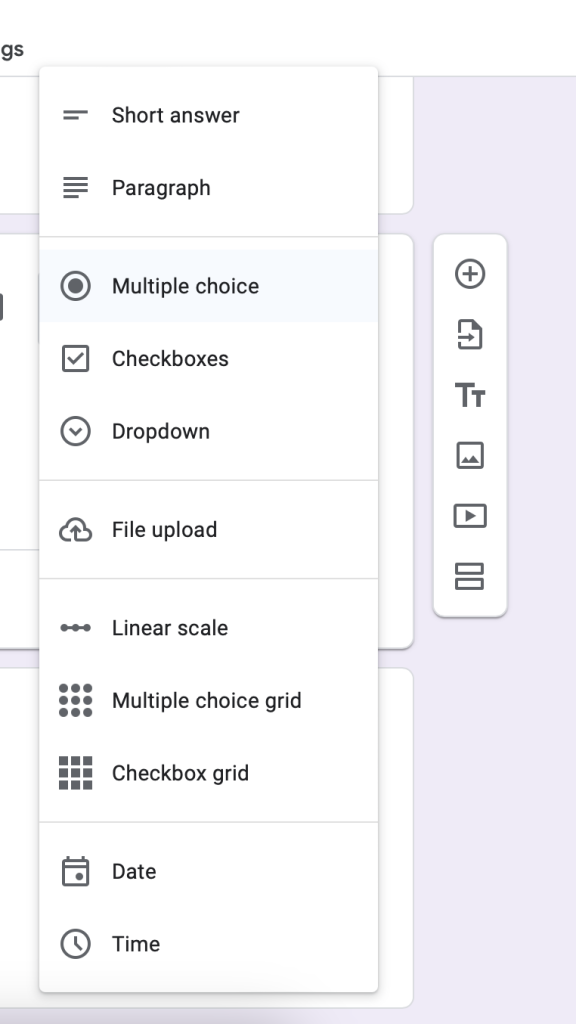
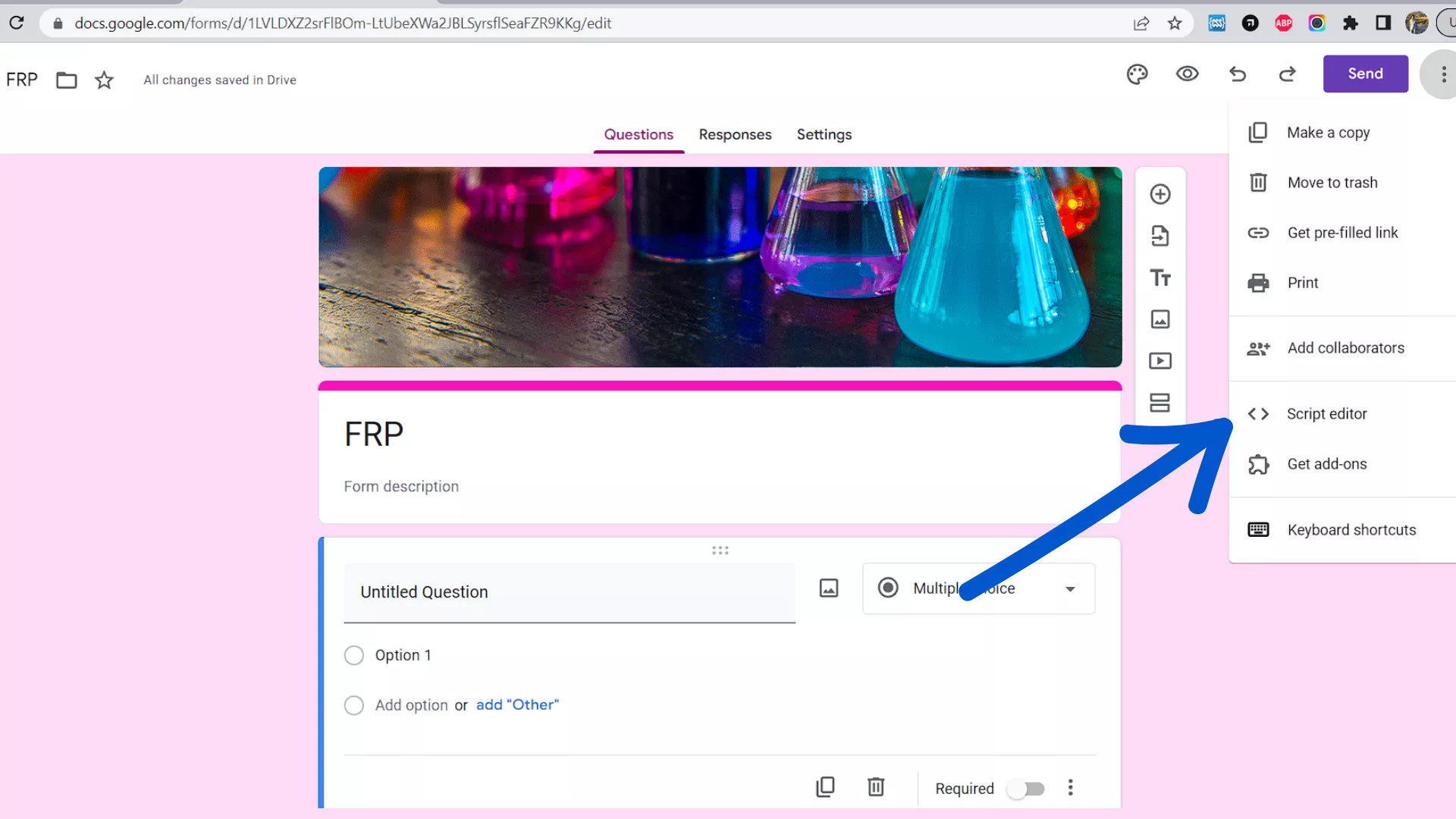
- Open your form and click Add image in the toolbar on the right side of the editor.
- Upload your logo or choose it from Drive, then click Select.
- Drag the image block to where you want it, for example right under the form title.
This works well in a form with several sections. Put a small logo at the start of each section, so every page the respondent clicks through shows it. You can also add an image to a single question, or to the answers of a multiple choice or checkbox question.
Match the theme color and font to your brand
A logo on a form in Google's default colors still looks like a default form. In the same Customize theme panel:
- Color: pick a theme color and a background color. Click Add custom color to use your exact brand color instead of a preset.
- Text: choose the style you want to change (headers, questions or text), then pick a font and size.
Choose the theme color from your logo, so the buttons and accents match. Fonts come from Google's list. You can't upload your own font or add CSS, and that's where Google Forms branding stops.
What you can't change in a Google Form
Your logo and colors sit inside a page Google still owns. Three parts stay Google's:
The Google footer
Every form ends with Google's footer: a "Never submit passwords through Google Forms" warning, a link to report the form, and the Google Forms logo. Forms made in a Google Workspace account add a line saying the form was created inside your organization. There is no setting to remove Google branding from a Google Form. The footer also shows when you embed the form on your website.
The docs.google.com address (no custom URL)
A Google Form lives at a long docs.google.com/forms address. Once the form is published, click Copy responder link and tick Shorten URL to get a forms.gle link. It's easier to paste in an email, but it's still a Google address.
There's no setting for a custom URL for a Google Form. You have two workarounds:
- Redirect from your own domain. Set up an address such as yourfirm.com/intake that forwards to the form link. Most domain and web hosts call this a redirect or URL forwarding. People click your address, but they land on docs.google.com.
- Embed the form on your website. Use More > Embed HTML and paste the code into a page on your site. The address bar shows your page, and the Google footer still shows inside the form. Our guide on how to embed a Google Form covers the code and sizing.
The Google sign-in for file uploads
If your form has a File upload question, every respondent has to sign in to a Google account to answer it. You can't switch this off. For a client-facing form, that means a Google sign-in screen right after your logo. People without a Google account can't send their files at all. See how Google Forms file upload works and how to make a Google Form public for what you can and can't change.
When Google Forms branding is enough
For internal surveys, event sign-ups, classroom quizzes and quick feedback forms, a logo banner and your brand color are plenty. Respondents know it's a Google Form, and most won't mind.
It starts to matter when the form faces paying clients. A Google Forms intake form works, but it's often the first thing a new client fills in. The Google footer and address sit right next to your brand.
Collecting documents is harder. Tax files, contracts, ID scans or design assets need a File upload question, and that brings the Google sign-in screen. If you're an agency collecting files on behalf of your clients, the page may also need to carry their brand instead of Google's.
A branded upload page when you need files from clients
If you're branding a Google Form to collect files from clients, a dedicated upload page avoids the sign-in problem. File Request Pro's branded upload pages let anyone upload without an account. Files pass through our servers to your Google Drive, OneDrive or Dropbox on every plan, or to SharePoint on Pro and up.
- Every plan: your logo and branding text on the upload page. Starter shows a File Request Pro footer bar.
- Lite and up: custom colors. Lite and Pro show a small "Powered by" line.
- Business and Enterprise: no File Request Pro branding, your own domain (you add a CNAME record), your own email sender and custom CSS.
You can try it free for 15 days or 25 files, with no credit card.
Frequently asked questions
Can I add a logo to a Google Form without a header image?
Yes. Click Add image in the editor toolbar, upload your logo, and drag the image block under the form title. It shows as its own block rather than a banner.
What size should a Google Form header image be?
Google doesn't publish an official size. 1600 x 400 pixels (4:1) is the size most guides use, or 2400 x 600 if that looks blurry. Keep your logo away from the edges so cropping doesn't cut it.
Why is my logo blurry or cut off?
Usually the file was too small, or square, and Google scaled it up or cropped it into the banner shape. Rebuild it on a 4:1 canvas, export it as PNG, and use Reposition Header Image to adjust the crop.
Can a Google Form use my own domain?
No. The form always loads from docs.google.com. You can redirect an address on your domain to the form or embed it on your site. Either way, the form itself stays on Google.
Can I remove the Google branding from a Google Form?
No. The footer with the Google Forms logo shows on every form, including embedded ones. For a page with no third-party branding, you need a different tool.